Author Archives: jay

How can I upgrade my hosting plan?

If you are running low on certain resources in your account, you can explore the options for upgrading.

You have two basic options – to upgrade just certain features of your plan (such as disk space, the number of hosted domains, email accounts, etc.) or upgrade to a more advanced package (if one is available).

You can find both options in the My Plan area on the left side of your Control Panel.

* If you do not see the Add or Upgrade Services menu at all, please go to Help -> My Tickets to open a ticket (or use the button below) and request assistance from our support staff.

The Change/Upgrade Plan option allows you to upgrade to a more resource-rich package. All available packages are displayed together with a list of the features they are offering and their price.

Once you choose the package that you want to upgrade to, you have to select it, then choose the payment method you would like to use and then click on the Continue button to proceed to the payment page where you will have to fill out your payment information. If none of the payment options listed is suitable for you, please refer to this article: Alternative payment options

The Add or Upgrade Services link will take you to a page where you can upgrade certain features of your current package. Here is a list of all available upgrades:

  • Hosted Domains – this upgrade allows you to host more domain names in your account
  • Subdomains – this upgrade allows you to create more subdomains; (For more information, refer to: What is a subdomain and how do I create one?)
  • IP Addresses – this upgrade allows you to purchase a dedicated IP address. (For more information, refer to: What is a dedicated IP and do I need one?)
  • SSH – this upgrade allows you to have SSH access to the server; (For more information, refer to: What is SSH?)
  • MySQL Databases – this upgrade provides you with additional MySQL databases. (For more information, refer to: What is a MySQL database?)
  • MySQL Quota – this upgrade provides you with additional disk space for your MySQL databases
  • PostgreSQL Databases – this upgrade provides you with additional PostgreSQL databases. (For more information, refer to: What is a PostgreSQL database?)
  • PostgreSQL Quota – this upgrade provides you with additional disk space for your PostgreSQL databases
  • Disk Space – this upgrade provides you with additional storage on the server for your files and emails
  • Traffic – this upgrade allows you to increase the monthly traffic limit
  • Email Addresses – this upgrade allows you to create more e-mail accounts
  • FTP Accounts – this upgrade allows you to create more FTP accounts. (For more information, refer to: What is an FTP account and (why) do I need different FTP accounts?)
  • Backup – By default, we keep a backup of your account only if the data is below 5 GB. This upgrade allows you to increase the backup limit
  • Cronjobs – this upgrade allows you to set up more cron jobs. (For more information, refer to: What is crontab?)
  • CPU Usage – this upgrade allows you to increase the CPU usage limit of your account. (For more information, refer to: What is meant under CPU usage and how do I monitor it?)

Next to each feature, there is a drop-down menu that allows you to choose the quantity that you wish to purchase. Next to it you’ll also see the monthly price, the remaining period and the total price that you’ll have to pay for the particular upgrade. You can make multiple upgrades at the same time.

Once you select all the services that you wish to add, you have to choose the payment method you would like to use and click on the Continue button to proceed to the payment page where you will have to fill out your payment information. If none of the payment options listed is suitable for you, please refer to this article: Alternative payment options.
Why is there a red “X” (DNS error) for my domain’s name servers?

Generally, there are two cases in which your domain name may appear with the red X mark in the Hosted Domains section of your Control Panel: either the domain name does not have the required name servers set or the DNS update has not been completed yet.

Domain name registrations and DNS modifications could take up to 24 hours to update after they have been initiated.

You can find the name servers that you should use for all your domain names above the hosted domains table.

If you’ve registered your domain with us and you haven’t made any changes to the name servers yourself, it should already be using our name servers.

However, if the domain was registered or added to Hosted Domains more than 24 hours ago but you still see a red  mark indicating that the name servers are not correct, you can try to refresh the name servers’ status manually. 

You can do that by clicking on the NS status icon in the first column of the table of hosted domains. 

If this does not work, you will need to check if you have the correct name servers set for your domain.  

To do that, in the Registered Domains section right click on the given domain name and then select the NS status option. 

This will bring up a window with two fields (one for each name server). These fields show you the two name servers that the domain name is currently using. 

To change the name servers, just type in the ones that are featured in the Hosted Domains section and click on the Change NSes button.

Make sure that domain names registered with another company and added to your Hosted Domains here are using our name servers – usually you can do this from the domain management panel provided by your registrar (the company you registered the domain(s) with).

If you are sure that your domain is using the correct name servers and more than 24 hours have passed since you registered/hosted the domain or updated the name servers, then it is most likely our system that hasn’t “noticed” the change yet.

If that’s the case, we can force the system to check the name servers of your domain.

To request this, please open a ticket from the Help center or the button below.

How do I host a domain name?

You can host multiple* domain names in a single hosting account with us. The first domain name that will be hosted in your account is specified during the signup procedure. In order to properly host additional domain names, go to My Domains > Hosted Domains section, click the “Host Domain” button and follow the steps:

1. Make sure the option “Host Domain” is selected.
2. Type in your domain name, e.g. my-best-domain.com

*The domain name must be registered and the name servers must be changed with the ones specified in the Hosted Domains section.

Note: the “Don’t manage DNS” option has to be selected ONLY if you wish to use third party name servers for your domain name and just point it to this account using A record redirection. Otherwise leave that box unchecked and set our Name Servers (NS) for your domain.

Each domain name servers are managed from its Registrar – the company, where you have bought the domain from. If your domain name has been registered from this hosting account, its name servers could be managed from My Domains > Registered Domains.

3. Advanced Settings – this section is optional. Please leave the default settings if you are not sure what to do.

4. Click „Add a Host“ to host your domain in your hosting account.

Once you add the domain name, a red icon will be displayed under the NS column. Once the name server changes propagate (this may require up to 24 hours), the DNS status will be updated as well. More information on that matter is available in the article: Why is there a red icon sign (DNS error) for my domain’s name servers?

* Please have in mind that in order to host additional domain names, you must make sure that your hosting plan can support it. For that you should refer to the Account Usage table available on the left side of the Web Hosting Control Panel.

There you can see the number of domain names that you are currently hosting and the number of the domain names that you can add. If the available amount is zero, you must upgrade your account in order to host more domain names. You can find more information in the article How do I upgrade my hosting account?

TrexHost Alternative Payment Options

We understand that not everyone has access to a credit/debit card or PayPal. That’s why TrexHost offers multiple alternative payment options, making it easy for you to pay for hosting plans, domain renewals, and other services—without any hassle.

1. Skrill (Formerly Moneybookers)

If you have a Skrill account, you can transfer funds directly to support@duoservers.com. Be sure to include a note specifying the purpose of your payment, such as your hosting plan, domain renewal, or invoice number.

While Skrill accounts are often funded via credit or debit cards, in many regions you can also add funds through local banks—even if you don’t have a bank account.

2. Bank Wire Transfer

Bank wire payments are another secure and reliable option. When you choose this method during checkout or renewal, you’ll receive:

  • Our bank account details
  • A short form to complete, including:
    • Sender’s full name
    • Transaction or reference number
    • Exact payment amount

You can also submit this information via a support ticket. Make sure to clearly indicate the purpose of the payment to ensure smooth processing.

Why Choose TrexHost?

With high-performance servers, 24/7 expert support, and a 99.9% uptime guarantee, TrexHost ensures your websites remain fast, secure, and always accessible. Whether you’re running a personal blog, an online store, or multiple business websites, we provide reliable hosting, advanced tools, and scalable resources to help your projects grow.

Understanding Recurring Payments with TrexHost

At TrexHost, reliability and convenience are central to our hosting services. To ensure uninterrupted access to your websites, domains, and hosting plans, we use an automated recurring billing system. This system helps prevent missed renewals, reduces the risk of downtime, and allows you to manage your services confidently. Below, we explain how recurring payments work, when charges are processed, and how you can manage or update your subscription settings.

How Recurring Payments Work

When payment for services—including hosting plans, domain registrations, and upgrades—is made via credit or debit card or PayPal, a recurring payment subscription is automatically created for the next billing cycle.

This subscription ensures automatic renewal of the applicable service, maintaining uninterrupted access to your TrexHost hosting environment and eliminating the need for manual renewals.

  • For card payments, subscription details are included in the payment confirmation email.
  • For PayPal transactions, confirmation is provided directly by PayPal.

Advance Renewal Processing

Recurring charges are processed seven (7) days before the subscription’s renewal date. This advance processing helps minimize the risk of service interruptions due to payment issues, such as insufficient funds.

If a renewal attempt fails, the account holder is notified promptly and given seven days to resolve the issue, ensuring continuous service without disruption.

Managing or Canceling Subscriptions

Active subscriptions can be viewed or canceled at any time through the TrexHost Control Panel:

  1. Hover over your account name in the top-right corner.
  2. Navigate to the Recurring section to manage your subscriptions.

PayPal subscriptions can also be managed or canceled directly through your PayPal account.

Changing Your Payment Method

To update the payment method while keeping an active subscription:

  1. Go to the Recurring section in your Control Panel and select Change.
  2. Choose from PayPal, FirstData (credit and debit cards), or WorldPay (American Express).
  3. You will be redirected to a payment authorization page to complete a $0.00 transaction, which enables future automatic charges when your hosting plan or domain is due for renewal.

Conclusion

TrexHost’s recurring payment system provides a seamless, secure, and worry-free billing experience. By automating renewals and offering flexible subscription management options, we help ensure your websites and domains remain active without interruption.

If you need assistance at any time, our support team is available 24/7 to help you manage your services and continue enjoying the performance, stability, and reliability that TrexHost hosting delivers.

How to Access and Edit Your MySQL Database Online with phpMyAdmin

1. Accessing Your Database

  • Log in to your TrexHost Control Panel.
  • Navigate to Databases > MySQL Databases.
  • Click on the name of the database you want to access.

A new window will open, displaying the phpMyAdmin home screen.

2. Understanding phpMyAdmin

phpMyAdmin is a web-based tool that allows you to manage every aspect of your database, including:

  • Creating tables, columns, and rows manually
  • Editing existing data
  • Importing and exporting data
  • Running SQL queries

It provides a powerful interface to manage databases easily and securely from your browser.

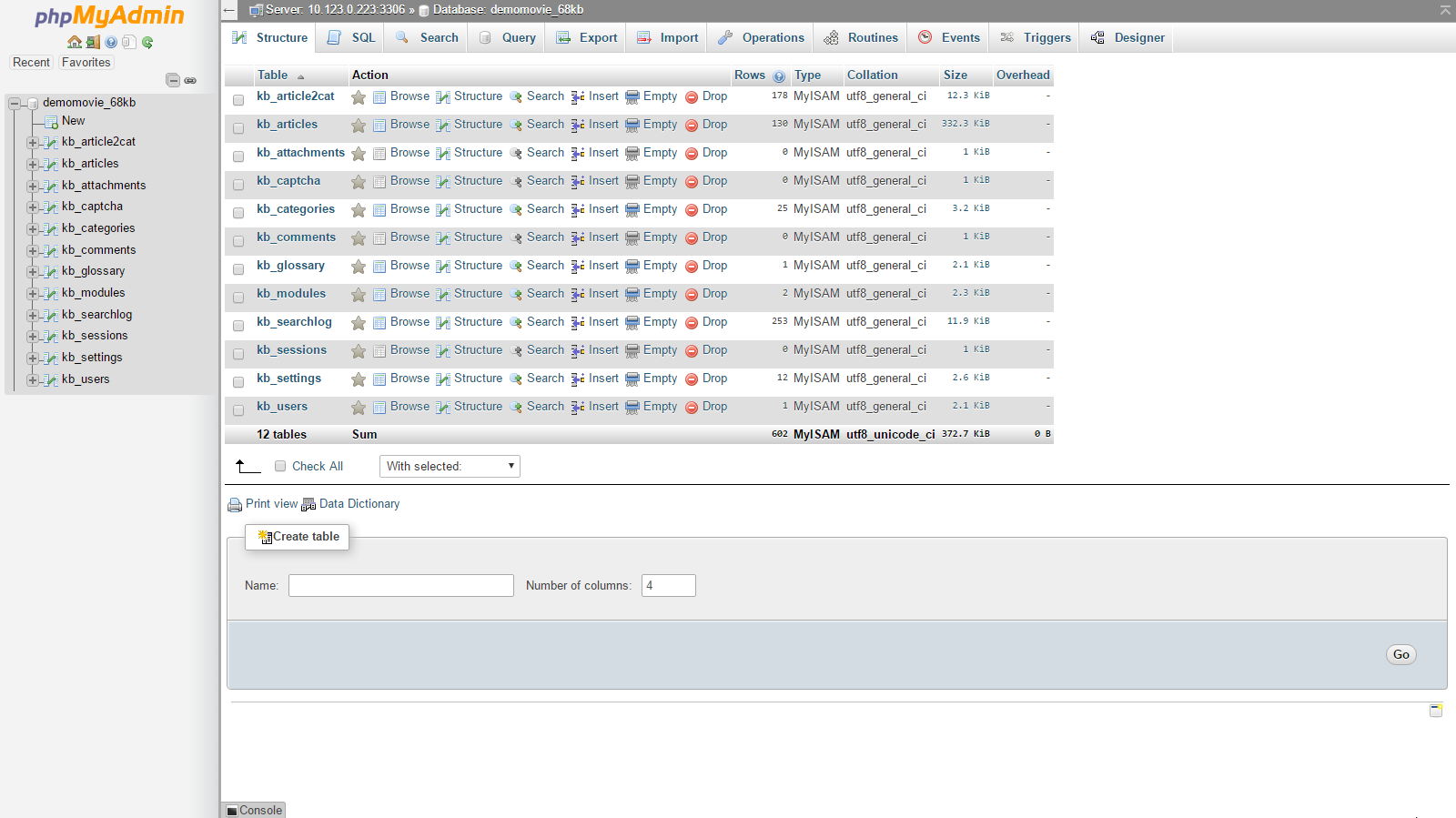
3. Viewing Database Tables

  • Database tables are listed in both the main panel and the left sidebar.
  • If tables do not appear immediately, select your database from the drop-down menu in the left panel.
  • To open a table, simply click its name in the left sidebar.

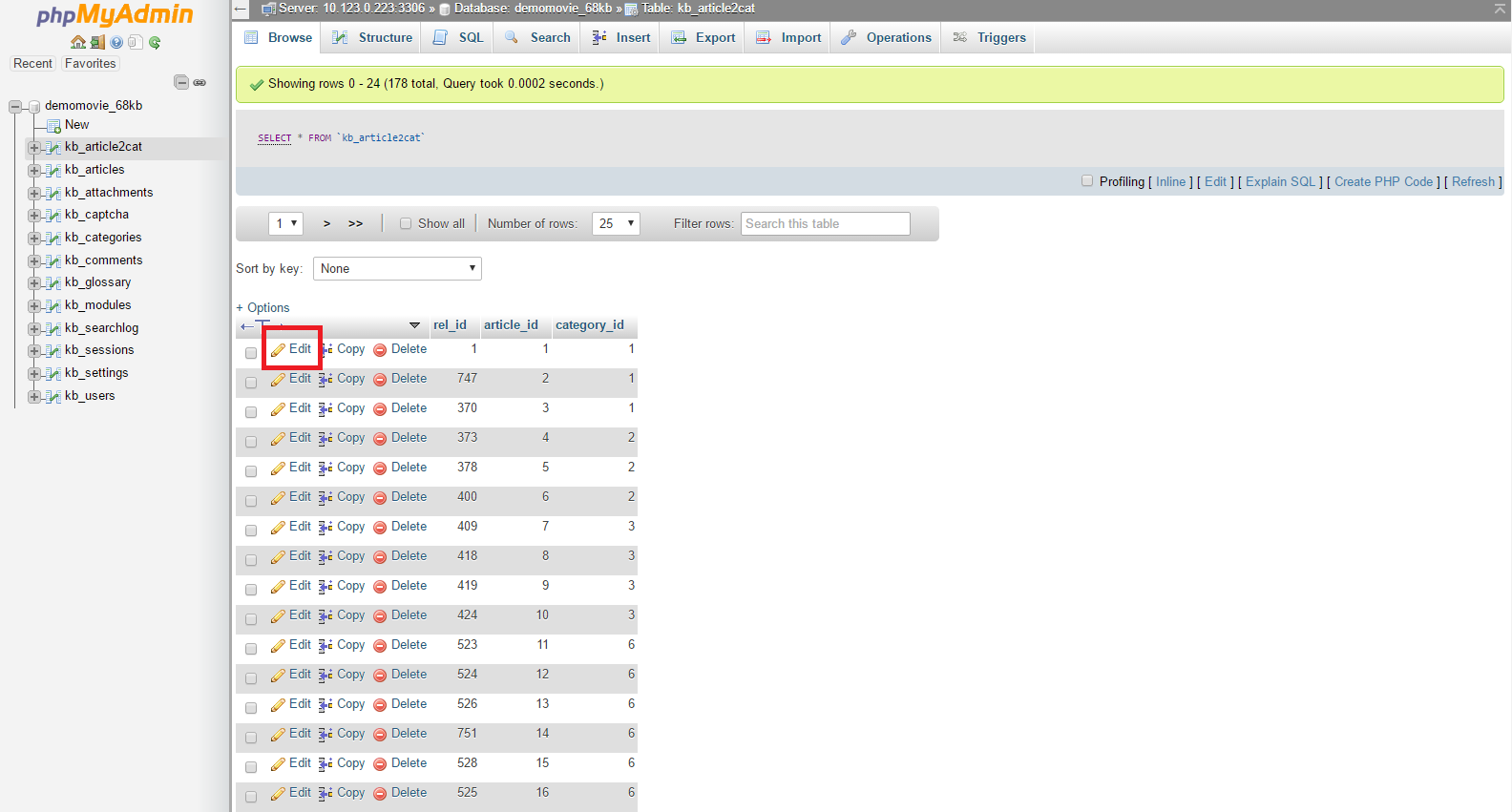
4. Editing Table Data

  • After opening a table, you will see its columns and rows containing data.
  • To edit a row, click the pencil-shaped icon next to it.
  • A form will appear where you can modify the data for the selected row.
  • Make your changes and click Go to save them.

Note: Each column has a specific data type that must be followed when editing.

5. Executing SQL Queries

  • Click the SQL tab at the top of phpMyAdmin.
  • Enter your query in the Run SQL query/queries field.
  • Click Go to execute the query.

This allows you to perform advanced database operations quickly and efficiently.

6. Importing and Exporting Databases

phpMyAdmin also allows you to create backups and restore databases:

With TrexHost hosting, managing your MySQL databases is fast, secure, and fully browser-based, giving you complete control over your website’s data anytime, anywhere.

How to Restore (Import) Your MySQL Database from a Backup with TrexHost

You can easily manage and restore your MySQL databases online using phpMyAdmin, which is fully integrated into your TrexHost Control Panel. This tool allows you to access, export, and import databases quickly and securely, making database management simple and reliable.

Accessing phpMyAdmin

To open phpMyAdmin for your database:

  1. Log in to your TrexHost Control Panel and go to Databases > MySQL Databases.
  2. Locate your database in the list and click the phpMyAdmin icon next to it.
  3. A new window will open with the phpMyAdmin home screen.
  4. In the left-hand panel, click your database name to select it.

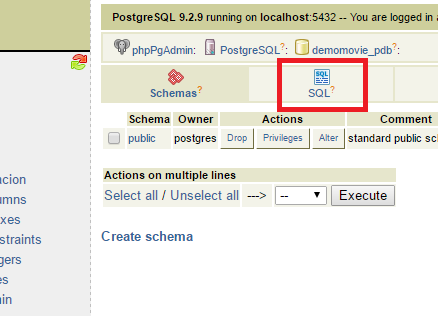
In the top-right panel, you will see several icons. Click the SQL icon (usually the second one) to open the query window.

Importing Your Database Backup (Dump File)

To restore a database from a backup:

  1. Click the Import Files tab in the query window.
  2. Press the Choose… button and select the backup file from your local computer.
  3. Click Go to start importing the database.

Important: Using this method, you can import dump files up to 20MB in size. For larger files:

Why Use TrexHost for MySQL Database Management

With TrexHost, restoring and managing MySQL databases is simple, secure, and reliable. Our hosting services offer:

  • Full MySQL and phpMyAdmin support for easy database access.
  • High-performance servers to ensure smooth website and application operation.
  • Expert technical support to assist with database imports, backups, and troubleshooting.

Start hosting with TrexHost today and enjoy hassle-free MySQL database management, giving you complete control over your website and applications.

How to Backup (Export) Your MySQL Database with TrexHost

You can easily manage your MySQL databases online using phpMyAdmin, which is fully integrated into your TrexHost Control Panel. This powerful tool lets you access, import, export, and manage your databases quickly and securely.

Accessing phpMyAdmin

To open phpMyAdmin for your database:

  1. Log in to your TrexHost Control Panel and navigate to Databases > MySQL Databases.
  2. Locate your database in the list and click its name.
  3. A new window will open with the phpMyAdmin home screen.
  4. In the left-hand panel, click your database name to view its contents.

The right-hand panel displays a list of all tables in your database, along with available actions and settings.

Backing Up (Exporting) Your Database

To create a backup of your database:

  1. Click the Export link above the table list.
  2. Scroll down and select the Save as file option.
  3. Click Go to start the download.
  4. Choose a location on your local computer to save the backup file.

The exported file can later be used to restore your database through phpMyAdmin, ensuring that your data is always safe and recoverable.

Why Use TrexHost for MySQL Database Management?

With TrexHost, managing MySQL databases is simple, secure, and reliable. You get:

  • Full phpMyAdmin integration for easy database access and management.
  • Secure backups and easy restoration of your data.
  • High performance and dependable server reliability.
  • Top-notch support from our knowledgeable customer service team.

Start hosting with TrexHost today and enjoy full MySQL support, efficient database management, and peace of mind for your website!

What Is a MySQL Database and How to Create It on TrexHost

MySQL is one of the most widely used systems for storing and managing data. It organizes information in a structured format, allowing websites and applications to operate efficiently and reliably.

Many popular web applications—such as WordPress, Joomla, Drupal, or osCommerce—depend on MySQL databases to store content, settings, and user data. If your website or app requires a database, especially PHP-based applications, it will most likely need MySQL.

A MySQL database organizes data into tables, which consist of columns and rows. When your website needs specific information, it sends a query to the database to retrieve it.

TrexHost fully supports MySQL databases, making it easy to create, manage, and use databases for your website or web application. With TrexHost, you get reliable database performance and full control through your hosting Control Panel.

Creating a MySQL Database in TrexHost Hosting Account

To create a MySQL database in your TrexHost account:

  1. Log in to your Control Panel and go to Databases > MySQL Databases.
  2. Click the Add MySQL tab on the right-hand side.
  3. Fill in the required fields to create your new database.

Typically, a separate database is created for each web application you install. This helps you manage applications individually and keeps data organized.

In the MySQL Databases section of your Control Panel, you can view a list of all databases associated with your account.

Database Username and Access

On TrexHost servers, the database name and username are the same. For example, if your database is named account_database, the username will also be account_database.

Each database has one default user, created automatically with full privileges. Additional users cannot be added, ensuring secure and controlled access to each database.

Using Your Database with a Web Application

When setting up a script or application to connect to your MySQL database, you will need the following information:

  • Database Name
  • Database Username (same as the database name)
  • Password
  • MySQL Host/Server

The MySQL host is typically listed in your database table—most often it is localhost.

With your MySQL database ready, your website or application can store and retrieve data quickly and securely. Start today with TrexHost hosting and enjoy full MySQL support for your website or web applications!