Category Archives: Knowledge Base

How to Update Moodle to Work with a New Domain

If you need to move your Moodle site to a new domain or make it accessible from a different URL, you must update its configuration settings. The key step is modifying the config.php file in Moodle’s main directory.

Step 1: Locate the config.php File

The config.php file is located in the root folder of your Moodle installation. You can access it via FTP, your hosting file manager, or SSH, depending on your setup.

Step 2: Edit the wwwroot Setting

Open config.php with a text editor. Look for the line that defines the site’s URL, which looks like this:

$CFG->wwwroot = 'http://olddomain.com';

Replace the old domain with your new domain name. For example:

$CFG->wwwroot = 'http://newdomain.com';

Make sure to use the correct protocol (http or https) based on your SSL setup.

Step 3: Save Changes and Clear Cache

After updating the URL, save the file and upload it back to the server if you edited it locally. Then, clear your browser cache to ensure Moodle loads from the new domain without issues.

Step 4: Verify the Site

Visit your new domain in a browser and check that your Moodle site loads correctly. Test a few pages and login to confirm all internal links now point to the new domain.

Important Notes:

  • If your Moodle site uses additional plugins or external integrations, make sure they also reference the new domain.
  • Back up your config.php file before making changes to avoid accidental misconfigurations.

By updating the $CFG->wwwroot value, your Moodle site will now function properly under the new domain, ensuring a smooth transition for your users.

Experience fast, secure, and reliable Moodle hosting with TrexHost—launch your site today and enjoy worry-free performance.

How to Adjust Product Image Quality in PrestaShop for Optimal Website Performance

PrestaShop, starting from version 1.4.4.1, offers store administrators the ability to manage the quality of their product images directly from the admin panel. This feature is valuable for those running large e-commerce websites, where high-quality images can sometimes impact loading speeds, especially if there are numerous products on display.

In this guide, we’ll walk you through the process of adjusting your product image quality in PrestaShop and explain how these changes can improve both image load times and overall website performance.

Step 1: Uploading Product Images

First, ensure you have your product images ready to upload. To do this, log in to your PrestaShop admin area, and navigate to:

Catalog > Products

  1. Choose the product you want to add or update images for.
  2. Open the Images tab within the product page.
  3. Here, you can browse and upload images for the selected product. You can upload multiple images for each product, which is great for showcasing different angles or variations.

Step 2: Adjusting Image Quality

Once your images are uploaded, it’s time to adjust their quality settings. This is done through the Preferences section in your admin panel.

Navigate to:

Preferences > Images

In this section, you’ll see options to modify the image quality for different formats. PrestaShop allows you to set quality values for JPEG and PNG formats, which are the most common file types used for product images.

  • JPEG Quality: You can adjust the quality from a range of 0 (lowest) to 100 (highest). Reducing the JPEG quality can result in smaller file sizes, but be mindful that too low of a quality setting may cause the images to appear pixelated or blurry.
  • PNG Quality: Similar to JPEG, PNG images can also be adjusted in terms of quality. However, unlike JPEG, PNG is a lossless format, meaning it retains more detail even at lower quality settings, although file sizes may remain relatively large compared to JPEG.

Step 3: Balancing Image Quality and Website Speed

When managing an online store, particularly one with many products, balancing image quality and performance is key. High-quality images can improve the user experience, but they can also slow down page load times, which affects SEO rankings and conversion rates.

  • Performance Considerations: For large stores with hundreds or thousands of products, it might be worthwhile to decrease image quality slightly to speed up loading times. While this may slightly reduce image sharpness, it can significantly boost your website’s overall performance.
  • Optimizing for Mobile Users: Remember that many users will visit your site on mobile devices, where slower connections are common. Lowering image quality without sacrificing too much visual appeal can lead to faster loading times, especially for mobile visitors.

Step 4: Regenerating Thumbnails

After adjusting the image quality settings, the final step is to regenerate your thumbnails. This process ensures that all previously uploaded product images are resized and optimized according to the new quality settings. To regenerate thumbnails:

  1. In the Images settings under Preferences, locate and click the button that says Regenerate Thumbnails.
  2. This will start the process, and PrestaShop will automatically resize all images according to your new settings.
  3. Depending on the number of products and images, this could take some time to complete, so be patient.

Step 5: Clear Your Cache and Check the Results

Once the regeneration process is finished, it’s essential to clear your browser’s cache to view the changes. To do this, simply:

  1. Clear the cache from your PrestaShop admin panel.
  2. Refresh your product pages to check the result.

By following these steps, your product images should load faster without sacrificing too much quality, leading to a more efficient and user-friendly website.

Final Thoughts

Adjusting image quality in PrestaShop is a simple yet effective way to improve website performance. Lowering image quality can significantly reduce file sizes, resulting in faster page loading times, which is particularly important for large online stores. However, it’s important to find a balance—ensure your images still look professional and appealing while optimizing for speed. With the right settings, you can achieve a great user experience without compromising on performance.

Launch your online store with TrexHost’s optimized PrestaShop hosting—offering blazing-fast speeds, free SSL, daily backups, and 24/7 support.
TrexHost Alternative Payment Options

We understand that not everyone has access to a credit/debit card or PayPal. That’s why TrexHost offers multiple alternative payment options, making it easy for you to pay for hosting plans, domain renewals, and other services—without any hassle.

1. Skrill (Formerly Moneybookers)

If you have a Skrill account, you can transfer funds directly to support@duoservers.com. Be sure to include a note specifying the purpose of your payment, such as your hosting plan, domain renewal, or invoice number.

While Skrill accounts are often funded via credit or debit cards, in many regions you can also add funds through local banks—even if you don’t have a bank account.

2. Bank Wire Transfer

Bank wire payments are another secure and reliable option. When you choose this method during checkout or renewal, you’ll receive:

  • Our bank account details
  • A short form to complete, including:
    • Sender’s full name
    • Transaction or reference number
    • Exact payment amount

You can also submit this information via a support ticket. Make sure to clearly indicate the purpose of the payment to ensure smooth processing.

Why Choose TrexHost?

With high-performance servers, 24/7 expert support, and a 99.9% uptime guarantee, TrexHost ensures your websites remain fast, secure, and always accessible. Whether you’re running a personal blog, an online store, or multiple business websites, we provide reliable hosting, advanced tools, and scalable resources to help your projects grow.

Understanding Recurring Payments with TrexHost

At TrexHost, reliability and convenience are central to our hosting services. To ensure uninterrupted access to your websites, domains, and hosting plans, we use an automated recurring billing system. This system helps prevent missed renewals, reduces the risk of downtime, and allows you to manage your services confidently. Below, we explain how recurring payments work, when charges are processed, and how you can manage or update your subscription settings.

How Recurring Payments Work

When payment for services—including hosting plans, domain registrations, and upgrades—is made via credit or debit card or PayPal, a recurring payment subscription is automatically created for the next billing cycle.

This subscription ensures automatic renewal of the applicable service, maintaining uninterrupted access to your TrexHost hosting environment and eliminating the need for manual renewals.

  • For card payments, subscription details are included in the payment confirmation email.
  • For PayPal transactions, confirmation is provided directly by PayPal.

Advance Renewal Processing

Recurring charges are processed seven (7) days before the subscription’s renewal date. This advance processing helps minimize the risk of service interruptions due to payment issues, such as insufficient funds.

If a renewal attempt fails, the account holder is notified promptly and given seven days to resolve the issue, ensuring continuous service without disruption.

Managing or Canceling Subscriptions

Active subscriptions can be viewed or canceled at any time through the TrexHost Control Panel:

  1. Hover over your account name in the top-right corner.
  2. Navigate to the Recurring section to manage your subscriptions.

PayPal subscriptions can also be managed or canceled directly through your PayPal account.

Changing Your Payment Method

To update the payment method while keeping an active subscription:

  1. Go to the Recurring section in your Control Panel and select Change.
  2. Choose from PayPal, FirstData (credit and debit cards), or WorldPay (American Express).
  3. You will be redirected to a payment authorization page to complete a $0.00 transaction, which enables future automatic charges when your hosting plan or domain is due for renewal.

Conclusion

TrexHost’s recurring payment system provides a seamless, secure, and worry-free billing experience. By automating renewals and offering flexible subscription management options, we help ensure your websites and domains remain active without interruption.

If you need assistance at any time, our support team is available 24/7 to help you manage your services and continue enjoying the performance, stability, and reliability that TrexHost hosting delivers.

How to Access and Edit Your MySQL Database Online with phpMyAdmin

1. Accessing Your Database

  • Log in to your TrexHost Control Panel.
  • Navigate to Databases > MySQL Databases.
  • Click on the name of the database you want to access.

A new window will open, displaying the phpMyAdmin home screen.

2. Understanding phpMyAdmin

phpMyAdmin is a web-based tool that allows you to manage every aspect of your database, including:

  • Creating tables, columns, and rows manually
  • Editing existing data
  • Importing and exporting data
  • Running SQL queries

It provides a powerful interface to manage databases easily and securely from your browser.

3. Viewing Database Tables

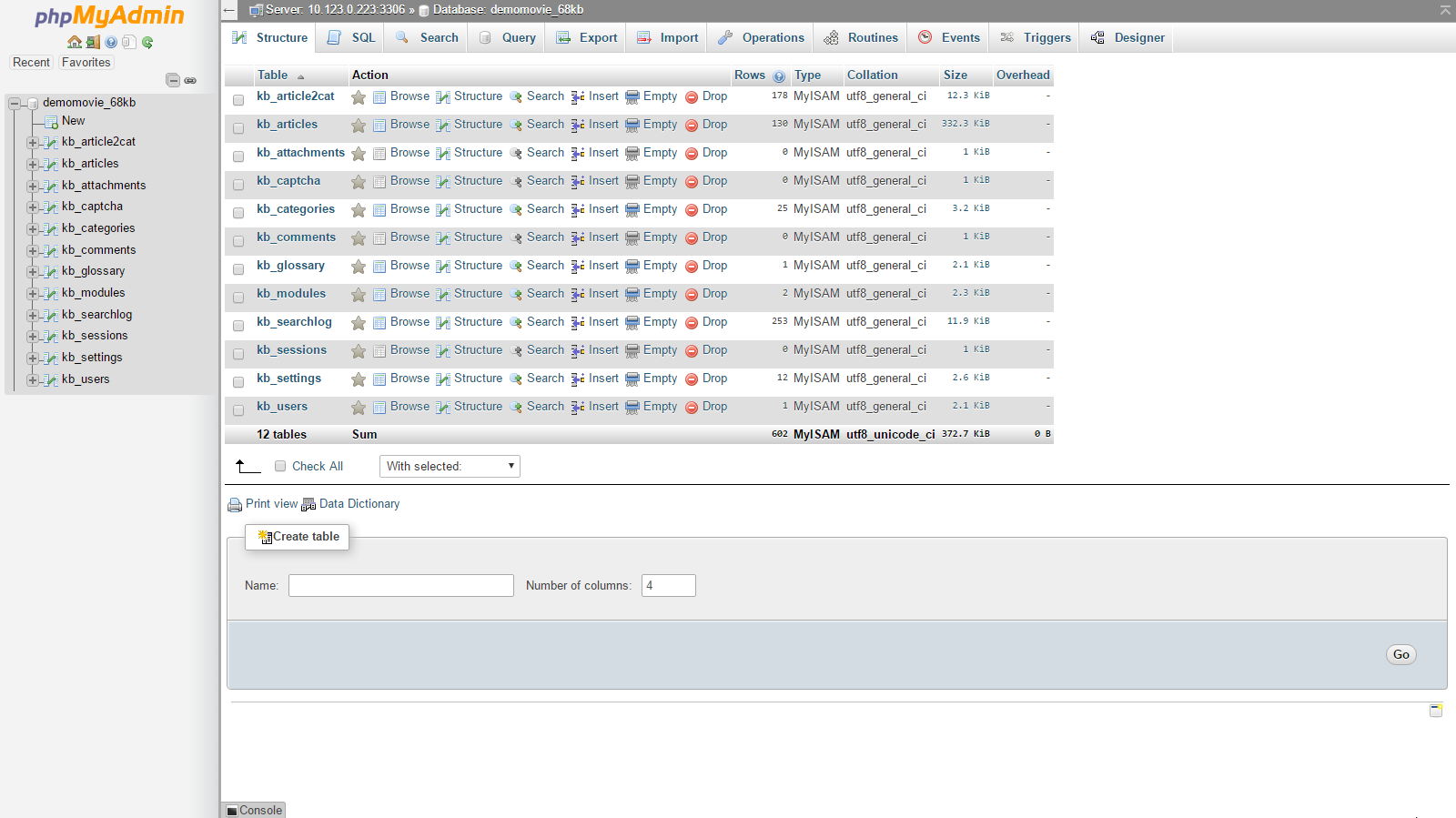
  • Database tables are listed in both the main panel and the left sidebar.
  • If tables do not appear immediately, select your database from the drop-down menu in the left panel.
  • To open a table, simply click its name in the left sidebar.

4. Editing Table Data

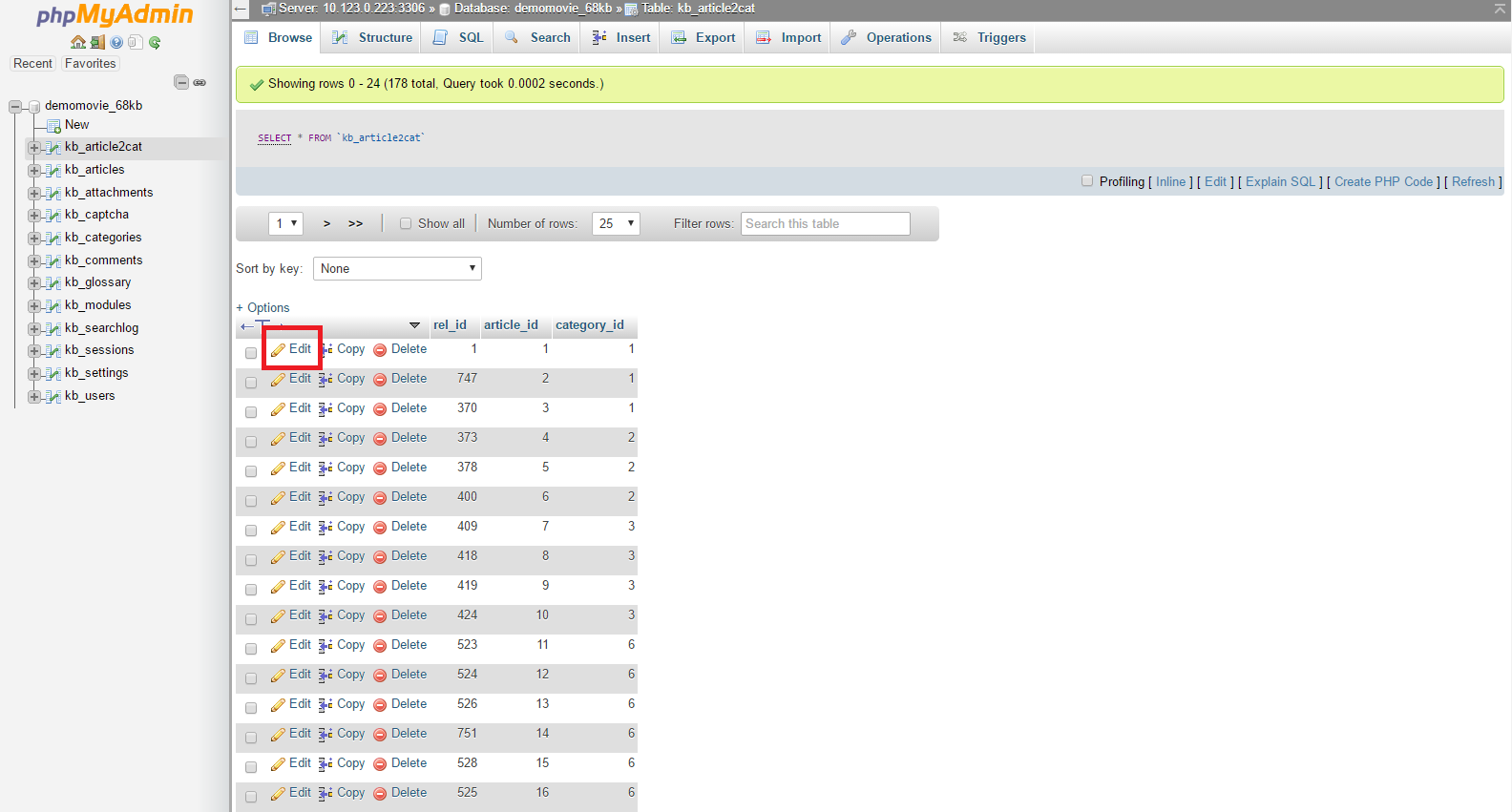
  • After opening a table, you will see its columns and rows containing data.
  • To edit a row, click the pencil-shaped icon next to it.
  • A form will appear where you can modify the data for the selected row.
  • Make your changes and click Go to save them.

Note: Each column has a specific data type that must be followed when editing.

5. Executing SQL Queries

  • Click the SQL tab at the top of phpMyAdmin.
  • Enter your query in the Run SQL query/queries field.
  • Click Go to execute the query.

This allows you to perform advanced database operations quickly and efficiently.

6. Importing and Exporting Databases

phpMyAdmin also allows you to create backups and restore databases:

With TrexHost hosting, managing your MySQL databases is fast, secure, and fully browser-based, giving you complete control over your website’s data anytime, anywhere.

How to Restore (Import) Your MySQL Database from a Backup with TrexHost

You can easily manage and restore your MySQL databases online using phpMyAdmin, which is fully integrated into your TrexHost Control Panel. This tool allows you to access, export, and import databases quickly and securely, making database management simple and reliable.

Accessing phpMyAdmin

To open phpMyAdmin for your database:

  1. Log in to your TrexHost Control Panel and go to Databases > MySQL Databases.
  2. Locate your database in the list and click the phpMyAdmin icon next to it.
  3. A new window will open with the phpMyAdmin home screen.
  4. In the left-hand panel, click your database name to select it.

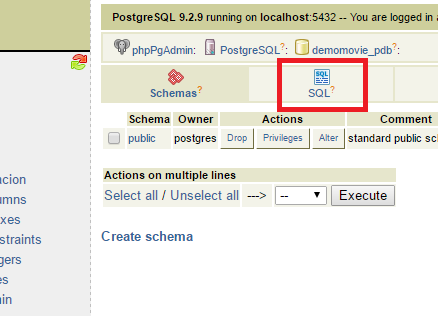
In the top-right panel, you will see several icons. Click the SQL icon (usually the second one) to open the query window.

Importing Your Database Backup (Dump File)

To restore a database from a backup:

  1. Click the Import Files tab in the query window.
  2. Press the Choose… button and select the backup file from your local computer.
  3. Click Go to start importing the database.

Important: Using this method, you can import dump files up to 20MB in size. For larger files:

Why Use TrexHost for MySQL Database Management

With TrexHost, restoring and managing MySQL databases is simple, secure, and reliable. Our hosting services offer:

  • Full MySQL and phpMyAdmin support for easy database access.
  • High-performance servers to ensure smooth website and application operation.
  • Expert technical support to assist with database imports, backups, and troubleshooting.

Start hosting with TrexHost today and enjoy hassle-free MySQL database management, giving you complete control over your website and applications.

How to Backup (Export) Your MySQL Database with TrexHost

You can easily manage your MySQL databases online using phpMyAdmin, which is fully integrated into your TrexHost Control Panel. This powerful tool lets you access, import, export, and manage your databases quickly and securely.

Accessing phpMyAdmin

To open phpMyAdmin for your database:

  1. Log in to your TrexHost Control Panel and navigate to Databases > MySQL Databases.
  2. Locate your database in the list and click its name.
  3. A new window will open with the phpMyAdmin home screen.
  4. In the left-hand panel, click your database name to view its contents.

The right-hand panel displays a list of all tables in your database, along with available actions and settings.

Backing Up (Exporting) Your Database

To create a backup of your database:

  1. Click the Export link above the table list.
  2. Scroll down and select the Save as file option.
  3. Click Go to start the download.
  4. Choose a location on your local computer to save the backup file.

The exported file can later be used to restore your database through phpMyAdmin, ensuring that your data is always safe and recoverable.

Why Use TrexHost for MySQL Database Management?

With TrexHost, managing MySQL databases is simple, secure, and reliable. You get:

  • Full phpMyAdmin integration for easy database access and management.
  • Secure backups and easy restoration of your data.
  • High performance and dependable server reliability.
  • Top-notch support from our knowledgeable customer service team.

Start hosting with TrexHost today and enjoy full MySQL support, efficient database management, and peace of mind for your website!

What Is a MySQL Database and How to Create It on TrexHost

MySQL is one of the most widely used systems for storing and managing data. It organizes information in a structured format, allowing websites and applications to operate efficiently and reliably.

Many popular web applications—such as WordPress, Joomla, Drupal, or osCommerce—depend on MySQL databases to store content, settings, and user data. If your website or app requires a database, especially PHP-based applications, it will most likely need MySQL.

A MySQL database organizes data into tables, which consist of columns and rows. When your website needs specific information, it sends a query to the database to retrieve it.

TrexHost fully supports MySQL databases, making it easy to create, manage, and use databases for your website or web application. With TrexHost, you get reliable database performance and full control through your hosting Control Panel.

Creating a MySQL Database in TrexHost Hosting Account

To create a MySQL database in your TrexHost account:

  1. Log in to your Control Panel and go to Databases > MySQL Databases.
  2. Click the Add MySQL tab on the right-hand side.
  3. Fill in the required fields to create your new database.

Typically, a separate database is created for each web application you install. This helps you manage applications individually and keeps data organized.

In the MySQL Databases section of your Control Panel, you can view a list of all databases associated with your account.

Database Username and Access

On TrexHost servers, the database name and username are the same. For example, if your database is named account_database, the username will also be account_database.

Each database has one default user, created automatically with full privileges. Additional users cannot be added, ensuring secure and controlled access to each database.

Using Your Database with a Web Application

When setting up a script or application to connect to your MySQL database, you will need the following information:

  • Database Name
  • Database Username (same as the database name)
  • Password
  • MySQL Host/Server

The MySQL host is typically listed in your database table—most often it is localhost.

With your MySQL database ready, your website or application can store and retrieve data quickly and securely. Start today with TrexHost hosting and enjoy full MySQL support for your website or web applications!

How to Connect to FTP with a Web Browser (e.g., Internet Explorer) on TrexHost

There are multiple ways to establish an FTP connection to manage your website files hosted on TrexHost. The most common method is using an FTP client—a software program that connects your computer directly to your hosting account. For a detailed step-by-step guide, see our related article: How to Upload or Download Your Website Files via FTP with TrexHost.

Connecting Without an FTP Client

If you don’t have an FTP client installed, or prefer not to download additional software, you can connect to your hosting account directly through your web browser.

To do this, open your browser and enter the following format in the address bar:

ftp://username:password@your-domain.com

Replace username and password with your actual FTP login credentials, and your-domain.com with the domain hosted on TrexHost.

Troubleshooting FTP Connections

If you have trouble connecting via FTP, your local firewall might be blocking port 21, which is required for standard FTP transfers. In that case, you can temporarily disable the firewall or add an exception for port 21 to allow the connection.

Why Choose TrexHost for Your Hosting?

With TrexHost, managing your website via FTP is simple, secure, and flexible. Whether you use an FTP client or connect through your browser, the TrexHost Control Panel provides full access to your files.

Benefits include:

  • Complete File Management: Upload, download, and organize your files anytime.
  • 24/7 Support: Our team is ready to assist with FTP setup, troubleshooting, or any hosting issues.
  • Secure, High-Performance Servers: Your data stays protected, and your website loads quickly.

TrexHost makes website management easy, giving you all the tools you need to run your site efficiently without restrictions.