Category Archives: Database

How to Access and Edit Your MySQL Database Online with phpMyAdmin

1. Accessing Your Database

  • Log in to your TrexHost Control Panel.
  • Navigate to Databases > MySQL Databases.
  • Click on the name of the database you want to access.

A new window will open, displaying the phpMyAdmin home screen.
2. Understanding phpMyAdmin

phpMyAdmin is a web-based tool that allows you to manage every aspect of your database, including:

  • Creating tables, columns, and rows manually
  • Editing existing data
  • Importing and exporting data
  • Running SQL queries

It provides a powerful interface to manage databases easily and securely from your browser.

3. Viewing Database Tables

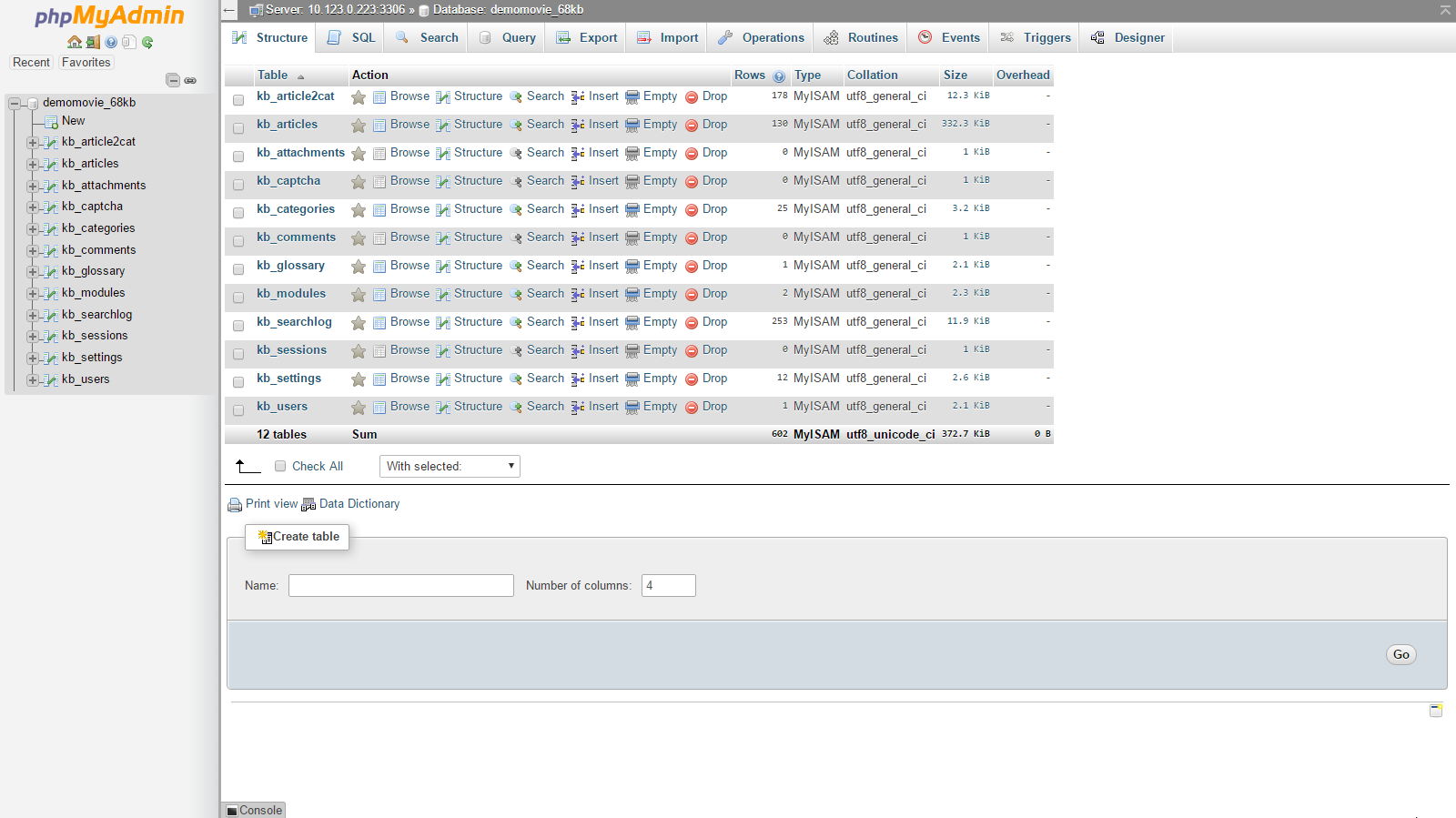
  • Database tables are listed in both the main panel and the left sidebar.
  • If tables do not appear immediately, select your database from the drop-down menu in the left panel.
  • To open a table, simply click its name in the left sidebar.

4. Editing Table Data

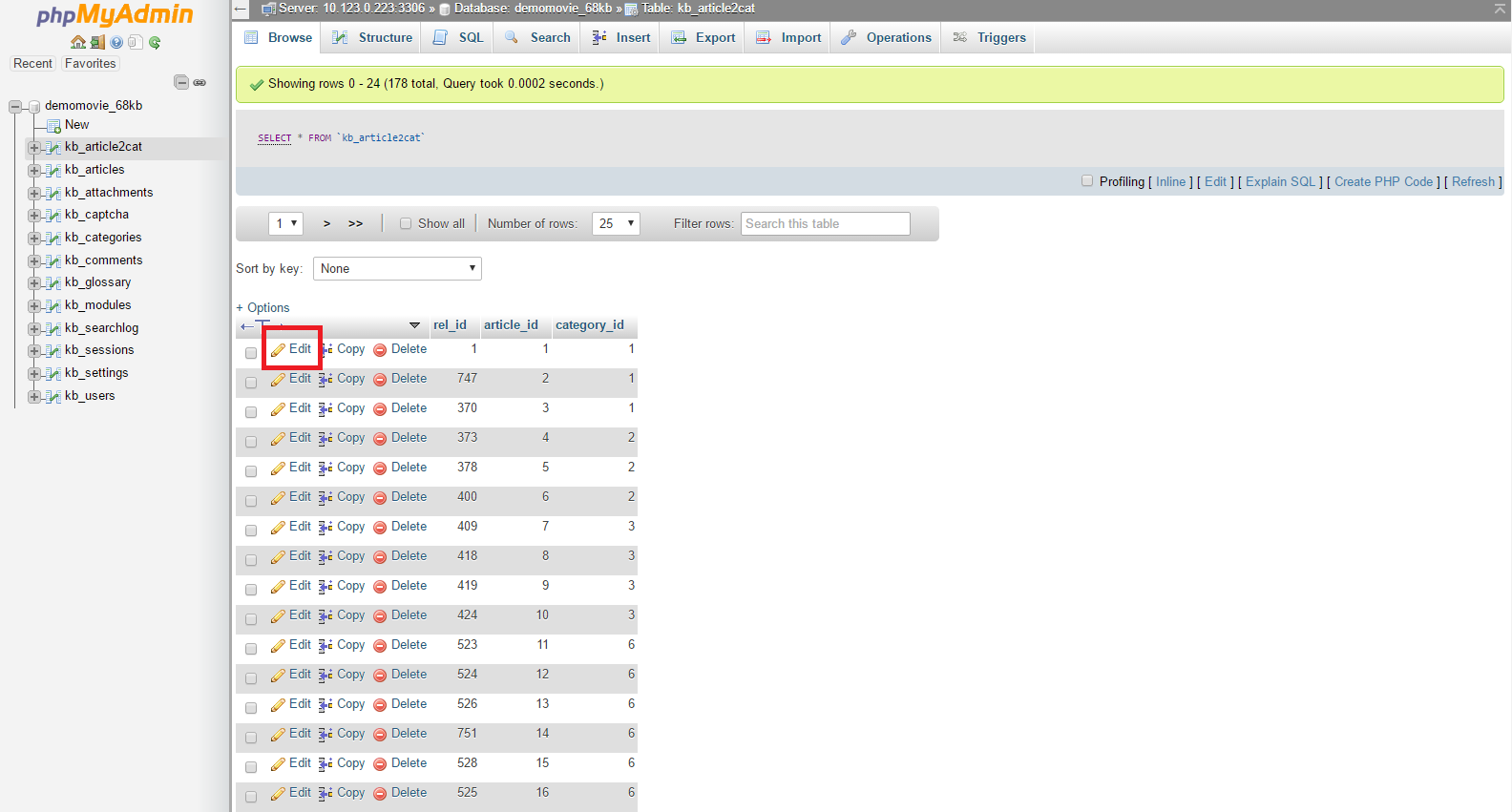
  • After opening a table, you will see its columns and rows containing data.
  • To edit a row, click the pencil-shaped icon next to it.
  • A form will appear where you can modify the data for the selected row.
  • Make your changes and click Go to save them.

Note: Each column has a specific data type that must be followed when editing.
5. Executing SQL Queries

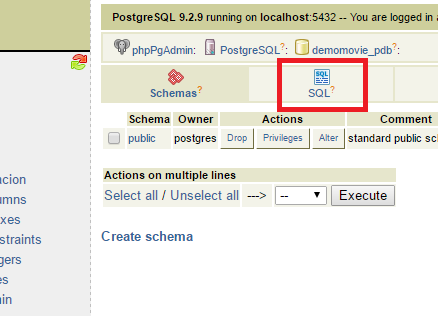
  • Click the SQL tab at the top of phpMyAdmin.
  • Enter your query in the Run SQL query/queries field.
  • Click Go to execute the query.

This allows you to perform advanced database operations quickly and efficiently.
6. Importing and Exporting Databases

phpMyAdmin also allows you to create backups and restore databases:

With TrexHost hosting, managing your MySQL databases is fast, secure, and fully browser-based, giving you complete control over your website’s data anytime, anywhere.

How to Restore (Import) Your MySQL Database from a Backup with TrexHost

You can easily manage and restore your MySQL databases online using phpMyAdmin, which is fully integrated into your TrexHost Control Panel. This tool allows you to access, export, and import databases quickly and securely, making database management simple and reliable.

Accessing phpMyAdmin

To open phpMyAdmin for your database:

  1. Log in to your TrexHost Control Panel and go to Databases > MySQL Databases.
  2. Locate your database in the list and click the phpMyAdmin icon next to it.
  3. A new window will open with the phpMyAdmin home screen.
  4. In the left-hand panel, click your database name to select it.

In the top-right panel, you will see several icons. Click the SQL icon (usually the second one) to open the query window.

Importing Your Database Backup (Dump File)

To restore a database from a backup:

  1. Click the Import Files tab in the query window.
  2. Press the Choose… button and select the backup file from your local computer.
  3. Click Go to start importing the database.

Important: Using this method, you can import dump files up to 20MB in size. For larger files:

Why Use TrexHost for MySQL Database Management

With TrexHost, restoring and managing MySQL databases is simple, secure, and reliable. Our hosting services offer:

  • Full MySQL and phpMyAdmin support for easy database access.
  • High-performance servers to ensure smooth website and application operation.
  • Expert technical support to assist with database imports, backups, and troubleshooting.

Start hosting with TrexHost today and enjoy hassle-free MySQL database management, giving you complete control over your website and applications.

How to Backup (Export) Your MySQL Database with TrexHost

You can easily manage your MySQL databases online using phpMyAdmin, which is fully integrated into your TrexHost Control Panel. This powerful tool lets you access, import, export, and manage your databases quickly and securely.

Accessing phpMyAdmin

To open phpMyAdmin for your database:

  1. Log in to your TrexHost Control Panel and navigate to Databases > MySQL Databases.
  2. Locate your database in the list and click its name.
  3. A new window will open with the phpMyAdmin home screen.
  4. In the left-hand panel, click your database name to view its contents.

The right-hand panel displays a list of all tables in your database, along with available actions and settings.

Backing Up (Exporting) Your Database

To create a backup of your database:

  1. Click the Export link above the table list.
  2. Scroll down and select the Save as file option.
  3. Click Go to start the download.
  4. Choose a location on your local computer to save the backup file.

The exported file can later be used to restore your database through phpMyAdmin, ensuring that your data is always safe and recoverable.

Why Use TrexHost for MySQL Database Management?

With TrexHost, managing MySQL databases is simple, secure, and reliable. You get:

  • Full phpMyAdmin integration for easy database access and management.
  • Secure backups and easy restoration of your data.
  • High performance and dependable server reliability.
  • Top-notch support from our knowledgeable customer service team.

Start hosting with TrexHost today and enjoy full MySQL support, efficient database management, and peace of mind for your website!

What Is a MySQL Database and How to Create It on TrexHost

MySQL is one of the most widely used systems for storing and managing data. It organizes information in a structured format, allowing websites and applications to operate efficiently and reliably.

Many popular web applications—such as WordPress, Joomla, Drupal, or osCommerce—depend on MySQL databases to store content, settings, and user data. If your website or app requires a database, especially PHP-based applications, it will most likely need MySQL.

A MySQL database organizes data into tables, which consist of columns and rows. When your website needs specific information, it sends a query to the database to retrieve it.

TrexHost fully supports MySQL databases, making it easy to create, manage, and use databases for your website or web application. With TrexHost, you get reliable database performance and full control through your hosting Control Panel.

Creating a MySQL Database in TrexHost Hosting Account

To create a MySQL database in your TrexHost account:

  1. Log in to your Control Panel and go to Databases > MySQL Databases.
  2. Click the Add MySQL tab on the right-hand side.
  3. Fill in the required fields to create your new database.

Typically, a separate database is created for each web application you install. This helps you manage applications individually and keeps data organized.

In the MySQL Databases section of your Control Panel, you can view a list of all databases associated with your account.

Database Username and Access

On TrexHost servers, the database name and username are the same. For example, if your database is named account_database, the username will also be account_database.

Each database has one default user, created automatically with full privileges. Additional users cannot be added, ensuring secure and controlled access to each database.

Using Your Database with a Web Application

When setting up a script or application to connect to your MySQL database, you will need the following information:

  • Database Name
  • Database Username (same as the database name)
  • Password
  • MySQL Host/Server

The MySQL host is typically listed in your database table—most often it is localhost.

With your MySQL database ready, your website or application can store and retrieve data quickly and securely. Start today with TrexHost hosting and enjoy full MySQL support for your website or web applications!