Author Archives: jay

What is CPU usage and how do I monitor it?

The Central Processing Unit (CPU), or processor, is the portion of a computer system that carries out the instructions of a computer program.

CPU time is the amount of time a computer program uses while processing CPU instructions.

The CPU time is often measured in seconds, while the CPU usage – by the percentage of a specified overall capacity.

In terms of your web hosting account, CPU usage is the percentage of the capacity of the server’s CPU that your account is generating.

Each web hosting account has a certain CPU usage limit. You can find out the exact CPU limit in the Account Usage table located on the left side of the Control Panel.


Account Usage table - CPU usage

You can monitor the CPU usage of your account via the Statistics > CPU Stats section of the Control Panel.

Once you open that menu, the CPU usage table is displayed. By default, the monthly account usage is displayed.

The columns in the table are as follows:

Day – you can click on each date for detailed information.

CPU Time – the amount of time the CPU has been processing instructions on behalf of your web hosting account.

Execution time – the amount of time applications from your web hosting account have been running.

CPU Usage – the percentage of the capacity of the server’s CPU used up by applications from your web hosting account.

Average Memory – the server memory used up by applications from your web hosting account during the execution time.

Processes – the number of processes that have been running during the reviewed period.

If you click on a particular day, you will see the same set of statistics displayed on an hourly basis.

It is recommended that you review other articles about CPU usage that provide detailed information on how it is calculated, how it affects the account and how to reduce it.

You also have the option to purchase additional CPU usage. For more information, please review the article “How can I upgrade my hosting plan?“.
Files that could be executed with crontab – allowed file extensions

There are no specific file types that can or cannot be executed from your account.

During our tests, the three most commonly used scripts showed excellent cron job compatibility.

These are PHP, Perl/CGI and bash scripts – with the corresponding extensions – *.php*.pl and *.sh.

Files included in a cron job entry should be Unix executables; in other words – should have execute permissions set.

You can do that using our File Manager (Files > File Manager section of your Control Panel).

Simply click on the desired file and set the permissions to 700 or 755 (the more commonly used format).

When specifying a new Perl cron job from our Crontab menu, we strongly recommend that you include the command perl at the start of the Command to execute field in order to achieve optimal level of support.

If you skip that step, the cron job may not be executed properly and the output may not be sent at all.

Also, when receiving the output of a cron task to your email address, you may get an error stating TERM environment variable not set in addition to the rest of the output.

The easiest way to resolve this error is by starting your bash script files with the following code:

#!/bin/bash
TERM=linux
export TERM

How to setup a cron job

In this tutorial, we will show you a few useful examples on how to create a cron job for your script-based websites.

Scripts usually include a working environment, which is sophisticated enough to work as a multi-structural base for performing a wide variety of tasks.

Those tasks altogether are easily implemented and combined into forums, informational portals, blogs, billing management systems, etc.

Although most often the implementation of a given script is done in real time and the users operate with a web-driven GUI to navigate through what the given script might offer, there are still some ”assignable” tasks that only site administrators can schedule.

Those tasks are what we call cron jobs – they carry important site/script maintenance information and pass system commands to the Cron Daemon via Crontab. Cron jobs are scheduled to execute shell commands or scripts at a given time or date.

Below you will find a few examples, which represent a shell command execution cron job and a script (cgi / php) execution cron job.

Cron jobs have the following formatting that we will divide into groups:

Cron job time schedule – [ Minute – Hour – Day – Month – Weekday ]

Cron job shell command – [ARGUMENTS]

Cron job script command – [PATH OF PHP/PERL] [ARGUMENTS] [PATH OF PHP SCRIPT]

Here is an example of cron job time scheduling and the allowed cron job operators:

.—————- minute (0 – 59) 
| .————- hour (0 – 23)
| | .———- day of month (1 – 31)
| | | .——- month (1 – 12) OR jan,feb,mar,apr … 
| | | | .—- day of week (0 – 6) (Sunday=0 or 7) OR sun,mon,tue,wed,thu,fri,sat 
| | | | |
* * * * * command to be executed

* * * * * => Execute every minute
0 * * * * => Execute every Hour
0 0 * * * => Execute every midnight
0 0 0 * * => Execute every Month
0 0 0 0 * => Execute every Weekdays

You can create cron jobs from your Control Panel.

To do that – navigate to Advanced > Cron Jobs and click on the ‘Create a New CronJob‘ button.

There you can also see the cron jobs that have already been created.

To set up a cron job – you must specify the email address where the results will be sent to, the date and the time when the job should be executed and the command, which should be executed.

Here is an example of running shell command driven cron jobs and script execution cron jobs:

0 * * * * rm -f * /home/www/my-best-domain.com/temp/

This command will initiate the rm (remove/delete) utility for file/folder deletion and will forcibly delete all the files under /home/www/my-best-domain.com/temp/

Let us say that you want to mail newsletters, site updates, etc. to your clients on a daily basis.

Most script systems have already prebuilt scripts for this purpose and many more automated services.

The cron job would look like this:

0 0 0 0 * /usr/bin/php /home/www/my-best-domain.com/mailcron.php

You can learn more on the allowed file types when using Crontab in the following tutorial: Files that could be executed with crontab – allowed file extensions.

What is crontab?

The Cron Daemon runs on Unix-based Operating Systems and, in essence, is closely similar to the Windows Task Scheduler.

It allows you to post your own ”magic rules” for useful and time sparing automation of any of the scripts you will be working with.

Cron is what enables users to schedule jobs, which run automatically at a certain date or time and thus perform system administration or script-related tasks.

The crontab is the virtual ”scoreboard” for setting up cron jobs and represents a configuration file to which users write shell commands that run periodically, at a given schedule.

The Cron Daemon is a long running process that executes commands and performs scheduled tasks at a specific date or time.

The stored commands are what we call cron jobs and the utility, which is used to keep a record of them is Crontab.

For your convenience, we have created a visual interface for creating cron jobs.

It is located under the Advanced > Cron Jobs section of your Control Panel.

Learn how to set up a simple cron job in this tutorial: How to set up a cron job?

What is an FTP account and (why) do I need different FTP accounts?

File Transfer Protocol (FTP) is a standard network protocol used to exchange and manipulate files over a TCP/IP based network, such as the Internet.

In other words, FTP offers a convenient and fast way for uploading or downloading files to and from the server.

In order to establish an FTP connection you need to have an FTP account on the server.

For more information you can read the article How to connect via FTP and upload/download files?

The FTP account is basically a set of a username and a password that authorizes access to the server via FTP.

The default FTP account that is created when your hosting account is set up provides access to the main /www/ folder of your web hosting account.

You also have the option to create new FTP accounts and you can do that via the FTP Manager section of your Control Panel (Files > FTP Accounts).

What is more important is that for each FTP account you can set an access path.

This way the newly created account provides access to a certain folder and its sub-folders, while all other folders are inaccessible.

That is useful if you wish to provide access to a third party (for example a web designer) to upload to your account without providing full access to that web hosting account.

What is a PostgreSQL database?

PostgreSQL is another Relational Database Management System (RDBMS) that is supported on our servers. The database stores information and the data is structured in tables – rows and columns.

A great deal of web applications that you can use on your website, such as shopping carts, forums, blogs or content management systems (CMS), require the use of a database.

Most open source applications use MySQL databases since they are easier to use and generally work faster. PostgreSQL, on the other hand, is more complex, which allows the developer more flexibility and provides more features.

For more information on comparing MySQL and PostgreSQL databases, please refer to this article: What is the difference between MySQL and PosgreSQL?

Important notice: Not all hosting plans include support for PostgreSQL databases. If you can’t see the PostgreSQL Databases section under the Databases menu on your hosting control panel, your plan does not support PostgreSQL.

You can create a PostgreSQL database using the Databases > PostgreSQL Databases menu of the Web Hosting Control Panel. Once you open that menu you’ll see the form for creating new PostgreSQL databases. You have to specify the name of the database.

It always starts with the username of your hosting account (username_) and then you can choose the unique part that will distinguish the particular database.

Then you have to specify and confirm the password for that database and click on the button below to create the database.

Below the form for creating new databases there is a table with all the existing PostgreSQL databases in your account.

For each database you have the option to change the password, delete the database or log in via the phpPgAdmin tool. For more information on how to log in, please refer to the respective article in this knowledge base.

Additional notes:

  • A database created on our servers will have only one user that is created by default (new users cannot be created) and the default user of the database has all the priviliges.
  • The database name and the database username in our system coincide.
  • It is advisable to create separate databases for every application that you use for easier management.

What is a MySQL database?

MySQL is one of the most popular and widely used Relational Database Management Systems (RDBMS).

Many web applications such as forums, content management systems, etc. use a database to store data (content). The majority of web applications that use databases require a MySQL database to operate.

For example, the popular web applications Joomla, Drupal, osCommerce and WordPress store their data in MySQL databases.

It is almost guaranteed that if your web application (especially those written in PHP) requires the use of a database, then it will need exactly a MySQL database or will at least support MySQL.

To be sure, however, check the technical requirements of the web application. The data in a MySQL database is structured in tables which consist of columns and rows.

Whenever your script (application) needs to access specific data, it “asks” (makes query) the MySQL database for the content of a specific field (the intersection of a column and a row in a table).

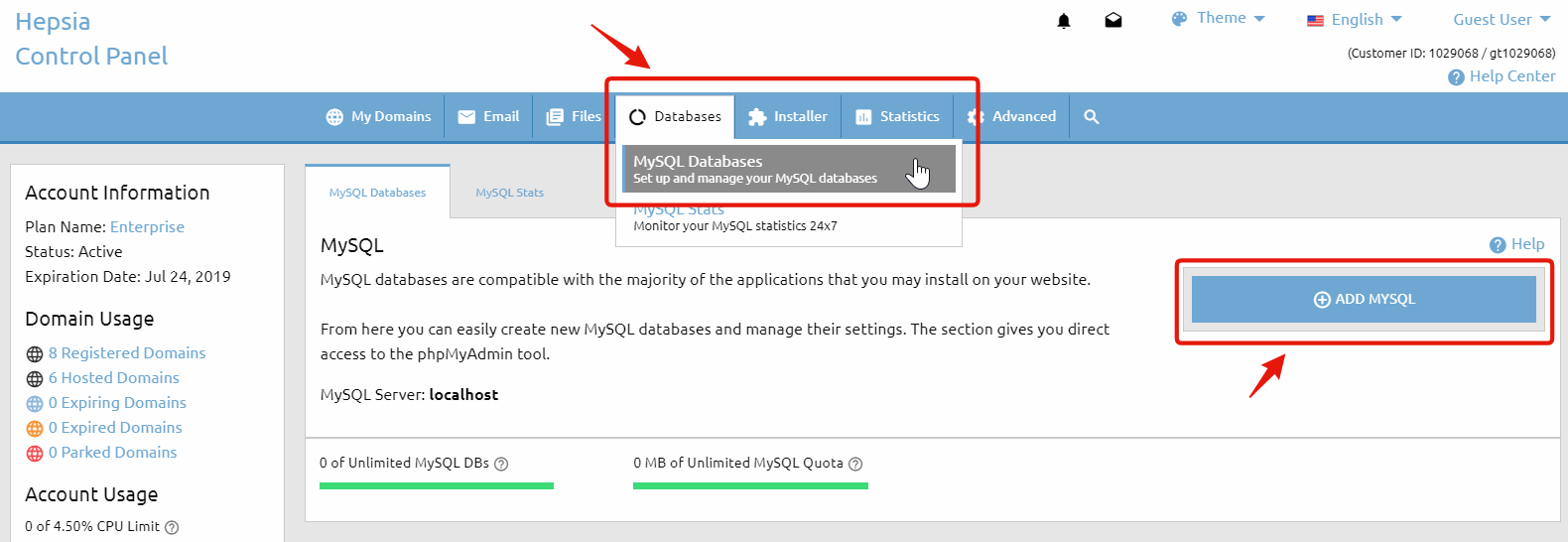
To create a MySQL database in your hosting account, go to the Databases > MySQL Databases section and click on the Add MySQL tab, on the right side of your Control Panel. 


Add MySQL Database

Usually a separate database is created for each web application that you install. Thus, the web applications can be managed easier.

In the MySQL Databases section you can also see a list of all MySQL databases that you have.

Note that the database name and the username are the same. For example, if you have a database whose name is account_database, then the username for the database will be account_database and vice-versa.

On our servers a database can only have one user (that is created by default) and new users cannot be created. The default user of the database has all the priviliges.

When you set up a script to use one of your databases you need the database name and username (which are the same, as mentioned above), the password and the MySQL host/server. You can find the MySQL host under the table with your existing MySQL databases. It is usually localhost.

What is SSH, how do I activate and use SSH?

SSH, also known as Secure Shell, is a network protocol that creates a secured channel, which allows data to be transferred and exchanged between two hosts.

Basically, the Internet in its early days was designed to provide ease of use, not security.

SSH substitutes older protocols, such as telnet and rlogin, where passwords were passed in plain text and could be easily intercepted.

You can use SSH in order to connect to a remote machine and execute commands.

For example, you can import a database, find files and edit them.

A server-client environment is used when connecting via SSH. The connection is standardized at TCP port 2222. 

What you need in order to connect is an SSH client software application. PuTTY is one of the most popular.

A server daemon is constantly checking for incoming requests.

So how can you obtain SSH access to your hosting account?

First, check whether SSH is enabled for your web hosting plan – navigate to the Advanced section of your Control Panel and check for the SSH/Shell Access option. If you don’t see this option, it is not included in your web hosting plan.

If it is enabled for your web hosting plan, you will see the SSH/Shell Access option and the status will be either ”Active” or ”Not Active”.

Click on the ”Activate” button.

A message such as the one below indicates that SSH is not included in your web hosting plan:

Your hosting plan type does not allow an additional SSH service to be added! Please refer to the ”Account Usage” table on the left.

You might need to upgrade your plan features by using the ”Add or Upgrade Services” section.

In this case, you can order SSH as an upgrade from the “Add or Upgrade Services” link on the left.

Once you have SSH activated, all you need is an SSH client (e.g. PuTTy), a username and a password.

The username is the same as the one that you use to log into your Control Panel.

The password could be easily set from the Advanced > SSH/Shell Access section.

If you choose to use PuTTy, set the SSH host/server to ssh.supremecenterXX.com (replace XX with the number of the server where your account is located – you can see it in the address bar/URL bar when you are logged into your Control Panel).

What is a dedicated IP and do I need one?

An Internet Protocol (IP) address is a numerical label that is assigned to devices participating in a computer network. An IP address serves two principal functions in networking: host or network interface identification and location addressing.

The role of the IP address has also been characterized as follows: “A name indicates what we seek. An address indicates where it is.”

By default, your hosting account and all the websites you have with us use the shared IP address of the server – meaning that many websites on the same server reside under the same IP address.

You have the option to use a dedicated IP address and your domain or subdomain will be the only one corresponding to this IP address.

In other words, the dedicated IP address will be reserved just for you not only on our server and network but worldwide on the Internet.

One of the main uses of dedicated IP addresses concerns the installation of SSL certificates that are required for secure pages.

If you want to have a form on the website that will collect sensitive information, for example, for payments or client accounts, it is advised to have that page secured in order to protect the personal or financial information of your visitors and clients.

Another purpose of using a dedicated IP address is if you need to open your website using the IP address as a URL instead of using the domain or subdomain it is hosted under.

For more information on how to purchase, request and assign a dedicated IP address, please refer to the article How do I get a dedicated IP for my domain/subdomain?

How to create a subdomain?

Subdomains are basically separate hostnames that are part of a larger domain.

 For instance, “example1.my-best-domain.com” and “example2.my-best-domain.com” are subdomains to the larger domain “my-best-domain.com“.

You can have a further subdivision – “english.example1.my-best-domain.com” and “spanish.example1.my-best-domain.com” are subdomains to “example1.my-best-domain.com“.

In theory, this subdivision can go down to 127 levels deep, and each one can contain up to 63 characters, as long as the whole domain name does not exceed a total length of 255 characters. In practice, some domain registries have shorter length limits than that.

Subdomains are commonly used to assign a unique name to a particular department, function, or service related to the main site or organization. For example, the forum on a given website can have its separate subdomain – forum.my-best-domain.com.

From the Hosted Domains area of the Control Panel, you can create a subdomain for a domain name that is already hosted in your account. 

Here are the steps to follow:

  1. Click on the “Create a Subdomain” button on the top right and make sure the option “Create a Subdomain” is selected.
  2. To create the subdomain webmail.my-best-domain.com, type in “webmail” and select “my-best-domain.com” from the the drop-down menu, containing all hosted domains.
  3. Advanced Settings – this section is optional. Please leave the default settings if you are not sure what to do. (Read further below to learn more about the Advanced settings)
  4. Click “Add a Host” to create the subdomain. The new host will need about 10 minutes to start working.

Here is what the Advanced settings are about:

Path: this field enables you to choose the folder that the subdomain will point to. By default that is: /www/subdomain/. For instance, the default path to example1.my-best-domain.com is /www/example1.my-best-domain.com/. 

IP Address: here you have a dropdown menu that enables you to select the shared IP address of your account or assign a dedicated IP address for that particular subdomain. For more information on dedicated IP addresses, please refer to the respective articles in this knowledge base.

After that you have the option to specify a custom error page for errors 400/401/403/404. You can also use the system (Apache) page or the default error pages.

Secure Socket Layer (SSL): this option enables you to use secure pages on this subdomain. For more information on SSL, please refer to the respective articles in this knowledge base.

ModSecurity: the ModSecurity firewall option allows you to protect your subdomain-installed applications from most common hacker attacks; 

Further below you have the option to Activate Access & Error Logs. The Access Logs show you when the subdomain was accessed and by what IP address. The Error Logs show when and what errors occured on the subdomain.

You can see all subdomains in your account listed in the table of hosted domains.

In this table, you can find the following information per subdomain: the current name server status, the number of pertaining mailboxes, an indicator if an SSL certificate is installed, an indicator if DNSSEC is enabled, a button that will open the folder that this subdomain is pointed to, a button to check the traffic stats for this subdomain, a button to edit this subdomain and finally a button to delete this subdomain.

IMPORTANT: The “www” subdomain is the default subdomain of your domain. You cannot delete the “www” subdomain. Instead, you can simply delete the domain name from the Hosted Domains section of the Control Panel. Editing the “www” subdomain also updates the domain name itself. In other words, if you want to edit the domain name my-best-domain.com, then simply edit the www.my-best-domain.com subdomain.