Author Archives: jay

How to register a domain name?

With the growing number of websites on the Internet, it is becoming harder and harder to find a suitable domain name to register – one that is short, simple, to the point, and easy to remember.

That’s why, if you come across such a domain name that is suitable for your business or personal website, it is recommended that you register it right away.

Even if your website is not ready yet. You can register unlimited domain names through your account with us and there is no need to host them all. To find more information on hosting a domain name, please refer to the article: How do I host a domain name?

You can easily register a domain name via the Registered Domains section (My Domains > Registered Domains) of the Web Hosting Control Panel. Once you open that menu you should click on the Register/Transfer Domain button on the right-hand side.
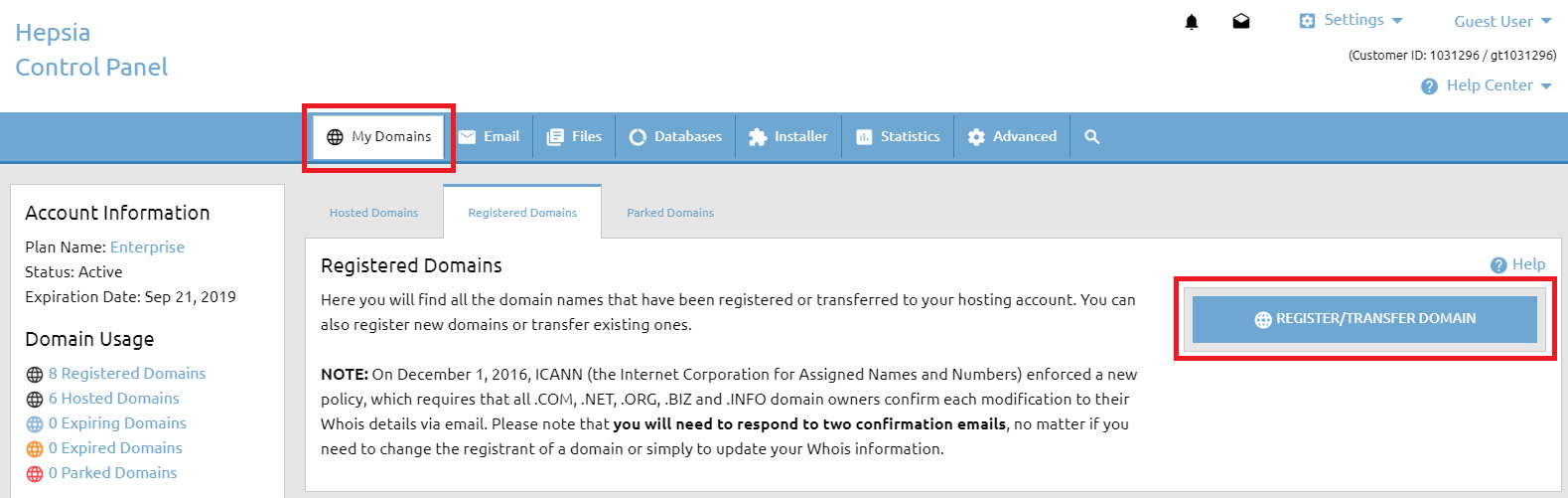

Domain Manager - Register Domain

To find our Domain Search form, click on the Domain Search button on the left sidebar of the page. This form will help you find an available domain name for you to register. In the section that is titled Search for a domain: you should input the domain name that you would like to register (what you enter will replace the predefined text my-best-domain.com).

Below that you have a list of all domain types (TLDs) that we can register and you have the option to select and deselect any of them. That way you will be able to choose what domain TLDs to search for.
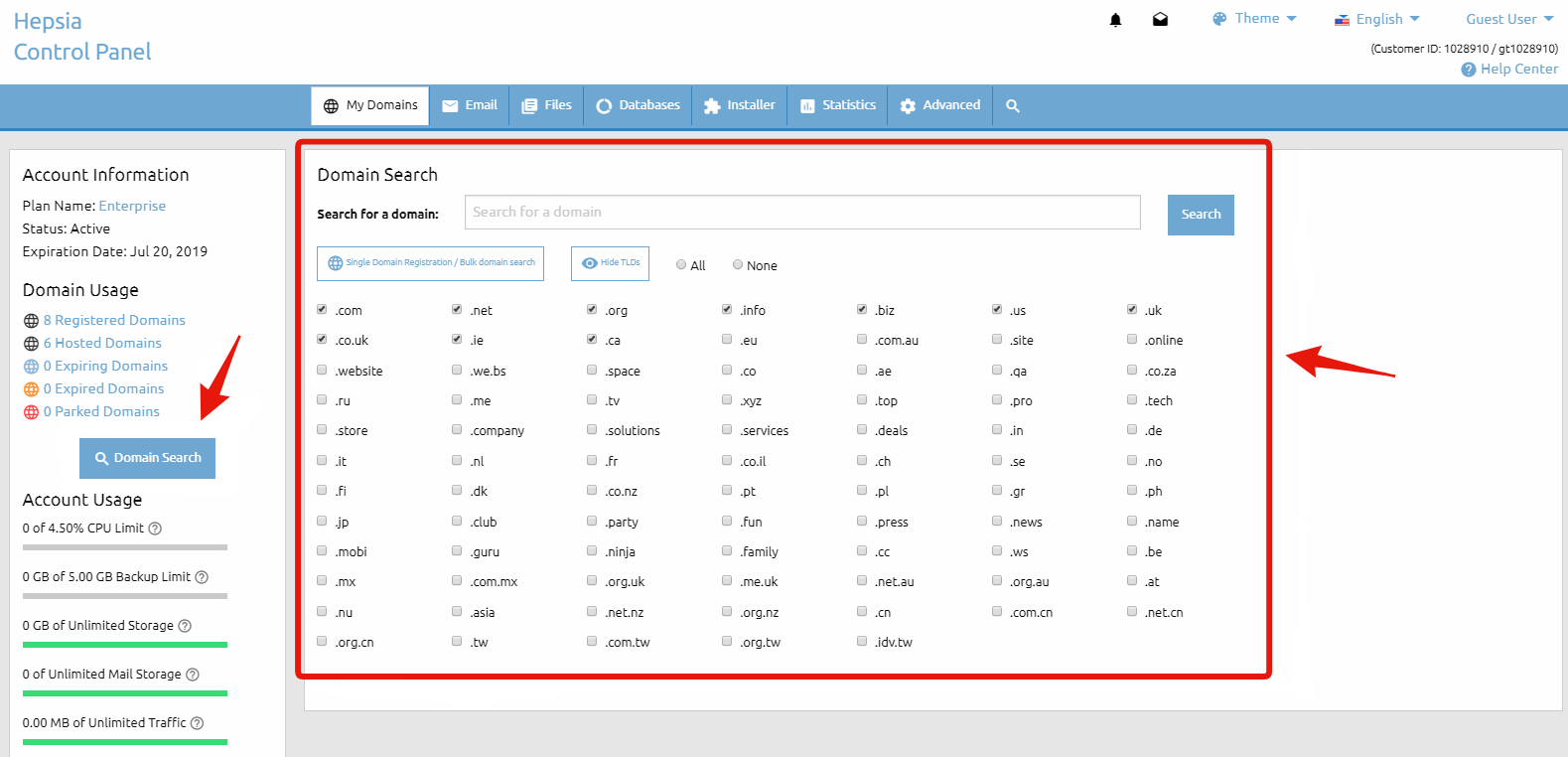

Domain Search Form

After that you must click on the Search button. That will execute a search based on the parameters that you have provided and you will be forwarded to the next page Domain Search Results to see the results.

If a domain name is available for registration you will see a Register button next to it. If you are trying to register a domain name, yet only a Transfer option appears, this simply means that someone else already owns the domain name and it is not available for registration.

If you own this domain name you can transfer it to our company by selecting the Transfer button. For more information on transferring a domain name, please refer to the What is a domain transfer? article. If you find the desire domain(s) you have to click on the Proceed with the order button.

On the next page, you also have the option to make a new search if the results from the initial one are not satisfactory. You can keep modifying the search parameters until you find a domain name that you wish to purchase.

There you will find a checkbox named Host this domain name with us. This gives you the option to immediately host the domain name after you submit the payment for the registration. If your current hosting plan does not allow hosting more domain names, you will be provided with the options to purchase an additional hosted domains upgrade or upgrade to a higher package, if one is available.

As soon as you find the domain name that you are looking for and you are ready to proceed with the registration, you must click on the Register button. That will take you to the next step – the contact information for the WHOIS record. Please make sure that you provide accurate contact details. This information will be publicly available.

For some domain TLDs you can purchase an additional service – WHOIS protection (also called ID protection) – that will conceal and protect your contact information. For detailed information about that service, please refer to the What is WHOIS ID protection? article. Once you fill out the registrant section, and if you wish to use the same contact information for all the other sections, there is an option to copy the same information in the other sections as well.

Before proceeding any further, you must agree with the Domain Registration Terms, the Domain Resolution Policy & the eNom Registration Agreement. It is recommended that you familiarize yourself with these documents.

And last, but not least, you need to choose the payment method you would like to use and then click the Continue button on the right to proceed to the payment page, where you will enter your payment information. If none of the listed payment options is suitable for you, please refer to the How to Pay Without a Credit/Debit Card or PayPal article.

What is a domain transfer?

A domain name transfer involves a domain name that you’ve already registered with another company but wish to transfer over to us. 

There are four general requirements for a successful transfer of a domain name to go through:

  1. The domain name must be at least 60 days old – should not be registered less than 60 days ago
  2. The domain name must be unlocked for transfer (For more information, please refer to: How to lock/unlock a domain name?)
  3. The domain”s EPP transfer authorization key must be provided (if the given TLD supports such) – it could be acquired from the domain name’s current registrar (For more information, please refer to: EPP (authorization code))
  4. The transfer verification emails must be responded to – they are sent within 24 hours after the domain transfer is initiated to the Administrative Contact email address specified in the WHOIS record of the domain name

Once the domain transfer is confirmed by following the instructions in the transfer verification email, the transfer procedure becomes fully automated and may take 3-5 business days to complete.

Some specific domain types (TLDs) have different requirements for transferring a domain name. Some TLDs cannot be transferred at all.

However, the afore-mentioned requirements are valid for the majority of the TLDs (domain extensions).

Are Microsoft SQL (MSSQL) or Microsoft Access databases supported?

As a customer-oriented company, we strongly believe that the quality of our services should exceed clients expectations at the lowest possible price.

On account of this, our management team decided to have all our servers running on the open-source platform called Linux – an Operating System that has gained tremendous popularity in the last several years among desktop users, as well as impressive growth on the server market.

This in turn has attracted more interest in the development of reliable and inexpensive (free, in most cases) products ranging from desktop applications and office suites to high-end database solutions.

The MSSQL and Access databases, developed by Microsoft, run exclusively on Windows-based servers, such as Windows Server 2003 and Windows Server 2008.

To be fair, there are applications that could theoretically provide MSSQL and Access support under Linux with questionable results and none of those meet our quality standards.

The alternative our company offers is MySQL – the fast, cross-platform database from ”MySQL AB”. Its portability means that you can use it on a variety of Operating Systems – Windows, Linux, Unix, Apple XServe, IBM mainframe, and many more.

If you have already developed your application using a MSSQL or an Access database, we can recommend you the following three options for conversion to MySQL:

Option 1: MSSQL2MySQL https://www.mysql.com/why-mysql/white-papers/guide-to-migrating-from-sql-server-to-mysql/

Option 2: Microsoft Data Transformation Services (DTS). Microsoft has included a data manipulation tool within the SQL server. It provides options for data export in various formats and systems. For more information on how to use this feature, please refer to these documents from Microsoft.com:

http://msdn.microsoft.com/en-us/library/cc917688.aspx

http://technet.microsoft.com/en-us/library/ms345120(SQL.90).aspx

Option 3: Similar to Microsoft DTS, Access has its own tool for table export in many formats (including ODBC). All you need to do here is right-click the table in Access and select ‘Export’. A new wizard will appear, guiding you through the conversion process.

How to create a mailbox?

You can create mailboxes at any of your hosted domains.

To create a mailbox go to Email > Mailboxes in your Control Panel. On the right you see a Create A New Email Account button.

After you click on it, you see several text boxes that you need to be filled in.

Email address – Here you enter the name for your mailbox, which is the part of your email address before the @. Next you choose one of your hosted domains from the drop-down menu on the right. The domain would be the part of your email address after the @.

Password – Here you need to enter the password for your mailbox. You will be using this password to login to the webmail and also when you setup your email account in Outlook and other email clients. You can enter a password using the symbols a-z and 0-9. The password should be between 3 and 32 symbols long. You can use a random password by pressing “Generate password” button.

Forward email – If you select this option, you will be able to enter an email address where all messages received in your new mailbox will be forwarded to. There is also a “Save a copy” option. If you select it, a copy of every message that is forwarded will also be saved in this mailbox. You will be able to setup email forwarding later.

Use Autoresponder – Select Auto-Reply option if you want to enter an auto-reply message, which would be sent back to anyone who sends you an email. Usually this option is used to setup a message informing people that you are on vacation, for example, so it is unlikely that you need this right now. You can setup an auto-responder at any time. (see: How to set an auto-reply message to my e-mail account?)

When you are ready, you can click the Add a Mailbox button to create the mailbox. It will appear in the list of Mailboxes.

You may also find these articles helpful:

High CPU usage caused by WordPress

WordPress is a content management system written in PHP. This means that the content it serves is generated dynamically by a set of PHP scripts: every time a visitor arrives at your website, WordPress processes the request and generates a response.

Clearly, responding to a request implies a certain use of server resources: one has to look at the request itself, determine what the visitor wants to access, fetch it from the database, generate the HTML response, and so on.

With this in mind it is not difficult to find out what are the reasons why we can see high CPU usage on the server:

– You get too many requests. If a lot of users come to your website at the same time, or you receive many illegitimate requests (someone’s probably attacking your site), WordPress will have to process all those requests and, therefore, the use of server resources will increase.

– Requests are slow to resolve. If you have a lot of plugins installed or some of your plugins is inefficient for whatever reason, all the requests you get will take longer than needed, because WordPress will run a lot of inefficient code.

Analyzing the problem

First you need to locate the website which is causing the problem, especially if you have more then one WordPress sites installed.

For the purpose, please check the Statistics block on the hosting control panel home page (Dashboard). If you sort the sites by Hits you can easily locate the most visited one.

Then you can find more details about the traffic and if there is any unusual behavior from the Web Statistics section of your control panel. 

Another great tool to locate a high resource consuming website is the MySQL Stats 

After that you have to identify why CPU usage has increased on our website. Has the number of requests to our website increased? Is it now slower to serve individual requests?

Solving the problem

Once of the first things you should try is to get a cache plugin installed. Once of the most popular ones is W3 Total Cache 

This great plugin also allows you to to setup Memcached for your WordPress for additional optimization. Check out our WordPress with Memcached article. 

Another great tool to analyze your WordPress performance is the Query Monitor plugin. 
It enables debugging of database queries, PHP errors, hooks and actions, block editor blocks, enqueued scripts and stylesheets, HTTP API calls, and more.

Sometimes the reason for high CPU usage could be the so called Bad Bots. Bad bots are any bot that hit your website at no benefit to you. These bots consume server resources especially if they hit your website or wp-login page excessively.

One of the great plugins lately is Wordfence and using this plugin you can easily view and block any of those bots and add an extra layer of security to your WordPress along the way.
Wordfence includes an endpoint firewall and malware scanner that were built from the ground up to protect WordPress.

Please check the official WordPress optimization instructions page as well. 

How do I use mailing lists?

You can create mailing lists from the Email -> Mailing Lists menu of your Control Panel.

Just click on the ‘Create a new mailing list‘ button on the top right and fill in the following details of your first mailing list:

 Mailing List Address – here you have to specify the address of the mailing list. When you send an email message to the address of the mailing list, this message is sent to all the subscribers of the mailing list.

The first part of the mailing list address is the name of the maling list. For instance, if example-list@my-site-name.net is the mailing list address, then example-list will be the mailing list name. 

Next, you have to specify the email address of the administrator of the mailing list.

The administrator email address will receive notifications about subscriptions, questions from subscribers and potential subscribers and other administrative e-mails.

After that, you have to type and confirm the administrator’s password.

The mailing lists on our servers are operated via commands sent to an automated mailing list management program called Majordomo. Majordomo is fairly easy to use but there are certain rules that you must follow:

– commands are sent to majordomo@my-best-domain.com
– commands must be in the body of the message (not the subject)
– each line is considered a new command

Here is a list of all the commands that you can use and their short explanations:

subscribe – this command subscribes to the mailing list the e-mail address that you are sending from and it must be followed by the name of the mailing list that you wish to subscribe to. If you wish to subscribe a different e-mail address, the command looks like this:

subscribe example-list example-mail@my-best-domain.com

unsubscribe – this command unsubscribes from the mailing list the e-mail address that you are sending from and it must be followed by the name of the mailing list that you wish to unsubscribe from. If you wish to unsubscribe a different e-mail address, the command looks like this:

unsubscribe example-list example-mail@my-best-domain.com

which – this command shows the mailing lists on this system that the e-mail address you are sending from is subscribed to. You can check for another e-mail address as well and then the command will look like this:

which example-mail@my-best-domain.com

That command can be further generalized in order to see the mailing lists that each e-mail address under the domain name example.com is subscribed to and then the command will simply be:

which my-best-domain.com

who – this command shows all the e-mail addresses that are subscribed to the mailing list and it must be followed by the name of the mailing list.

who example-list

info – this command shows detailed information about the mailing list itself and it must be followed by the name of the mailing list.

info example-list

index – this command shows if there are any files associated with the mailing list and it must be followed by the name of the mailing list.

index example-list

get – this command sends a request to retrieve a particular file that is associated with the mailing list and it must be followed by the name of the mailing list and the name of the file.

get example-list example.file

intro – this command retrieves the introductory message sent to new subscribers and it must be followed by the name of the mailing list. Non-subscribers may not be able to retrieve this.

intro example-list

lists – this command shows a list of all publicly available mailing lists on this system.

help – this command retrieves a help message that provides detailed information about working with Majordomo and the mailing list.

end – this command stops further processing of commands. That is useful if you use an automated signature for your e-mails. Otherwise each new line is considered a new command and you will receive false error messages.

And here is a list of the Majordomo commands that require the administrator password:

approve [password] subscribe/unsubscribe example-list example-mail@my-best-domain.com

This command approves the subscription or unsubscription of a particular e-mail address when the respective action requires the approval of the list owner. Have in mind that this is a standard subscribe/unsubscribe command preceded by “approve” + the adminstrator password.

approve [password] who example-list

This command shows the addresses on the anonymous list. Even the owner of the list cannot see who is on the anonymous list without the password.

passwd example-list [password] [new password]

This command allows you to change the administrator password by sending an e-mail. You can also change the password for the mailing list using the E-Mail Options > Mailing Lists menu of the Web Hosting Control Panel. Simply click on the Edit button next to the mailing list that you wish to change the password for.

newinfo example-list [password]

This command replaces the information file that people see when they subscribe or request with the info command. Everything after the password will be considered the new message unless you use the EOF word on a separate line.

config example-list [password]

This command sends a request to retrieve the self-documenting configuration file for the list.

newconfig example-list [password]

This command replaces the configuration file that you can retrieve with the config command and changes the configuration for the list as soon as it is validated. If you have other commands after that, they will be subject to the new configuration. Again, everything after the password will be considered the new configuration unless you use the EOF word on a separate line. If the new configuration file contains an error (an incorrect value), the entire file will not be accepted. There will be an error message dispaying the problem line(s). You are advised to keep a copy of the configuration files since only the error messages are returned but not the entire file.

How do I reduce the CPU usage of my hosting account?

The CPU usage involves the Central Processing Unit(s) of the web server where your account is hosted on.

Each hosting account has a CPU usage limit, which, when reached, may result in the account being suspended.

You can monitor the CPU usage stats for your hosting account at any given moment from the Statistics -> CPU Stats section of your Control Panel.

You can compare the current CPU usage with the allowed limit for your account, which you can see in the Account Usage table (located on the left side of your Control Panel).

To reduce the CPU usage of your account, there are several general rules you should follow:

  • Upgrade all third-party web applications to the latest stable release available (Joomla, WordPress and any other content management or blog systems, forums, galleries or any other scripts that you have installed)
  • If any of the web applications that you use have addons or plugins, make sure they are upgraded to the latest availble versions as well
  • Remove any unused web applications and/or plugins/addons that you have installed
  • Activate caching for any web applications that you use that have this option
  • If you have developed your script(s) yourself, try reducing the number of MySQL/PostgreSQL queries and optimize your scripts to use less processing time.

If you need to deal with a high CPU usage problem and reduce the CPU usage, you must first identify the reasons for the high CPU usage.

Unfortunately, this is often quite difficult, especially if you are using third-party web applications such as forums, content management or blog systems, etc. that you have not developed yourself and have little or no knowledge at all about their inner working.

Here are a few recommendations you could consider to get an idea where to start from:

  1. Identify the website that is most likely to be responsible for the high CPU usage.
    If you host more than one website (domain/subdomain) in your account, start by identifying which one is most visited and which one generates most traffic – this is probably the one that’s responsible for the high CPU usage. Go to the Statistics > Traffic Stats section and find out which of your hosts (domains or subdomains) has generated the most traffic for the past day and for the current month.
  2. Identify the file that is most likely responsible for the high CPU usage (if any).
    Once you have established which website has generated the most traffic by visiting the Statistics menu, go to the Statistics > Traffic Stats section of your Control Panel and view the traffic stats for this domain/subdomain for the current month. Look for the file(s) that have generated most traffic – you can find them in the Top 10 of XX Total URLs By KBytes table. Look for any PHP/CGI files in this list that have generated unusually large amounts of traffic. This file(s) is most likely the reason for the high CPU usage and you should consider optimizing it.
  3. Identify the visitor/bot that is most likely responsible for the high CPU usage (if any).
    Like in step 2, look at the monthly traffic stats for your domain/subdomain and look for the visitor/host that has generated most traffic this month. You will find the list under Top 10 of XX Total Sites By KBytes – look for any hosts that have generated unusually large amounts of traffic (compared to the rest) – it would either be an IP address or a hostname of the kind botname.some-domain.com. You may want to block the access of this host(s) or at least restrict it to reduce the CPU usage of your account.

If you are still unable to reduce the CPU usage of your account, you should either look for the help of a professional developer or simply consider a either a dedicated server or at least a VPS or a semi-dedicated server.

How do I get a dedicated IP for my domain/subdomain?

If your hosting package does not include a dedicated IP address, then you can easily obtain one as an upgrade.

In order to do that, go to the Add or Upgrade service(s) section located on the left side of your screen.

Once in there, find the line that says IP Addresses, select the amount of IPs that you wish to purchase, choose a payment method that is most convenient for you and click Continue to place the payment.

The price for every additional service, including the dedicated IP addresses, is calculated on a monthly basis for the remaining months until the expiration of your hosting package. For instance, if your account expires in 3 months’ time, then the price for the additional service will be calculated for three months only. Once your account expires, you will be able to renew the add-ons, along with the hosting plan itself.

Once the payment has been placed and approved by our Sales Department, you will be able to see the ordered IPs in the Account Usage table marked as Available. Also note that a new section Dedicated IPs will appear under the My Domains menu in your Web Hosting Control Panel once you order an IP address.

Ordering an IP address does not automatically assign it to your hosting account. Whenever you wish to put an IP address into use, just go to the My Domains > Dedicated IPs menu and click on Request IP Address. Once you do that, an IP address will be assigned to your account and you will be able to use it as you wish.
Every IP that you assign to your account will be shown in the list right below the Request IP Address button in the Dedicated IPs section. Also, when requested, the IP addresses will be marked as In Use in the Account Usage table on the left.

NOTE: Clicking on the Request IP Address button will only assign one IP address. If you have ordered multiple IP addresses, then you will have to request them one by one.

After the IP address has been purchased and requested, you can assign it to a specific domain/sub-domain name that you are hosting under your account. This is done through the Subdomain Manager (My Domains > Hosted Domains). There you’ll see a button for creating new subdomains and a list of all existing ones.

When creating a new subdomain, you can specify an IP address for it, selecting it from the IP Address drop-down menu. If you wish to assign an IP to an already existing name, simply use the Edit button next to the subdomain in question. Again, to assign an IP to this specific subdomain, just select it from the IP Address drop-down menu and click Add a Host to confirm the change.

Note that every time you change an IP address, the system needs up to 10 minutes to update the new information. There is also an additional propagation time, which could be up to 24 hours.

IMPORTANT: The “www” subdomain is a default subdomain of your domain. Changing the IP address for the “www” subdomain also changes it for the domain name itself. In other words, if you wish to change the IP of my-best-domain.com, then simply change the IP of www.my-best-domain.com.

How to clear the cache of my web browser?

Clearing your browser’s cache forces it to load the most recent version of the websites you visit, which can help resolve display or loading issues.

Below are instructions for clearing the cache in common web browsers:

Google Chrome

  1. Open Chrome.
  2. Click the three-dot menu in the top-right corner.
  3. Go to More tools → Clear browsing data.
  4. Select Cached images and files.
  5. Click Clear data.

Mozilla Firefox

  1. Open Firefox.
  2. Click History → Clear Recent History.
  3. Select Cache from the list.
  4. Click Clear Now.

Internet Explorer 8 / 10

  1. Open Internet Explorer.
  2. Click Settings → Delete Browsing History.
  3. Select Temporary Internet files (cache).
  4. Click Delete, then click OK to close the Internet Options window.

Vivaldi

  1. Open Vivaldi.
  2. Click Tools → Clear Private Data.
  3. Click Clear browsing data.

Opera

  1. Open Opera.
  2. Click the Opera menu in the top-left corner.
  3. Select Clear browsing data.
  4. Check Cached images and files.
  5. Click Clear data.

Safari

  1. Open Safari.
  2. Click Safari → Clear History.
  3. Choose the time range you want to clear.
  4. Click Clear History.

How to change the Control Panel password?

Unlike your username (login name), the password for your Control Panel can be changed at any time.

To update your password, move your mouse over your name in the top-right corner of the Control Panel and select Change Password from the menu.

You will be asked to complete the following three fields:

  • Current Password — enter your existing password
  • New Password — enter your new password
  • Re-type New Password — confirm your new password

After filling in all fields correctly, click the Change button at the bottom of the form to complete the process. Your new password will take effect immediately.

If you do not remember your current password, you can use the Forgotten Password link on the login page to reset it. Alternatively, you may contact our Support team by opening a support ticket.

To open a ticket, go to the Help menu (Help Center → My Tickets → Open a New Ticket) in the top-right corner of your Control Panel, or use the button below.